
Windows 11 23H2: Which Business PCs Reach End of Updates on November 10, 2026?
Identify affected Windows 11 23H2 editions, inventory business PCs, choose a supported target version and plan a controlled upgrade.
Windows 11 23H2 Enterprise and Education reach end of updates on November 10, 2026; November's monthly security update is the last in their support lifecycle. If you still have these PCs, inventory them now and schedule a move to a supported version. Windows 11 23H2 Pro reached end of support on November 11, 2025, including PCs used in businesses.
- The installed version and edition determine the end-of-updates date, regardless of business use.
- The PC will keep working, but antivirus does not replace operating system security patches.
- Installing the final 23H2 update does not extend support for the version.
- Complete an inventory, compatibility checks, backup and a pilot before deploying to all workstations.
This guide takes you from identifying workstations to verifying that they receive updates again. A version is a Windows release, such as 23H2; an edition is the product type, such as Pro or Enterprise. Check both before deciding on an upgrade or purchase. Last updated: November 9, 2026. Research included the original query and follow-up searches in Hebrew; the search tool cannot verify Google rankings from an Israeli location, so no verified local ranking order is claimed here.
Which 23H2 editions are reaching end of updates?
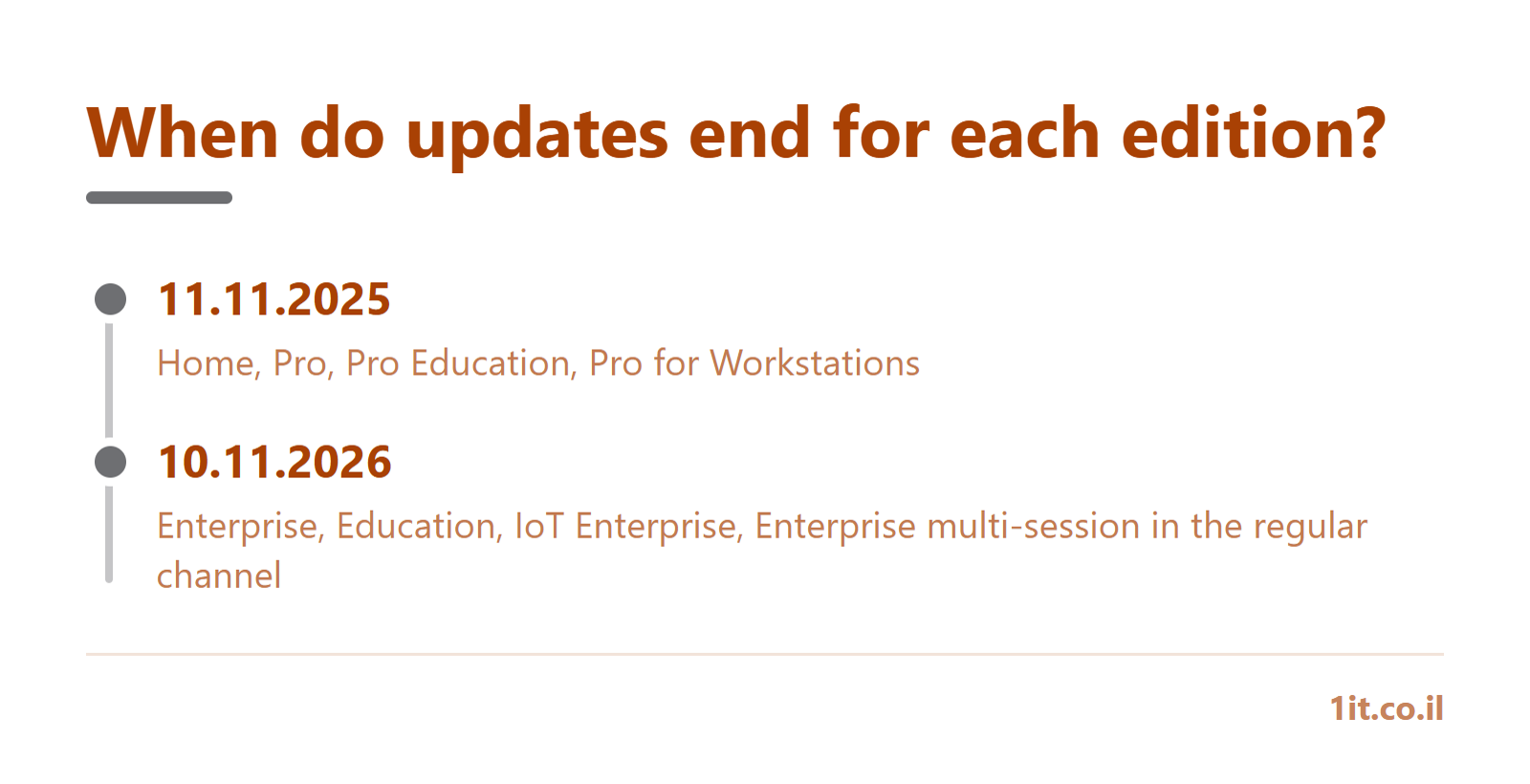
Windows 11 23H2 Enterprise and Education reach end of updates on November 10, 2026, along with IoT Enterprise and Enterprise multi-session in the General Availability Channel. Microsoft's release information table distinguishes this channel from LTSC, the Long-Term Servicing Channel, which has a separate lifecycle. Using a PC in a business does not change its edition or grant it the Enterprise lifecycle.
Windows 11 23H2 edition | End of updates | What this means now |
|---|---|---|
Home, Pro, Pro Education, Pro for Workstations | 11.11.2025 | Out of support; action required |
Enterprise, Education | 10.11.2026 | November's security update is the last in the lifecycle |
IoT Enterprise, Enterprise multi-session in the General Availability Channel | 10.11.2026 | Included in the same official support column |
LTSC editions | Separate lifecycle | Do not apply the 23H2 deadline to them |
The PC will continue working after the deadline, but it will no longer receive monthly operating system security patches under this lifecycle. Microsoft's 23H2 notification recommends moving eligible devices to a supported version. A cumulative update combines fixes within the existing version; a feature update moves the device to another release with its own support deadline. Install the final update when available through your update process, and continue with the upgrade: it does not extend the life of 23H2. Endpoint protection does not patch Windows code. For further guidance, see patch management and security updates.
How do you identify the version and edition across all business PCs?
Identify the version and edition using winver and the About screen, then consolidate fleet status in a current management report. According to Microsoft's identification guide, About shows the edition, version and OS Build, the precise build number of the operating system. Ask your IT owner to establish a complete workstation list, including laptops outside the office, shared workstations and spare PCs.
1. Check a workstation and document its screens
The workstation owner should press Win+R, enter winver and confirm. Then open Settings > System > About and record the Windows details. This is the equivalent of the Hebrew interface path shown in the Hebrew guide. Field names may vary by interface language and version. Keep screenshots of winver and Windows specifications in the Hebrew interface as internal evidence, after hiding unnecessary identifying information.
2. Generate a report and reconcile it with the inventory
The IT manager should export an inventory report from the existing management tool, including the last reporting date, filter for 23H2 and fill in missing editions. In Intune, where reporting is available and configured, use Reports > Windows Updates and the Windows Feature Update Report. The reporting documentation explains deployment status. Reconcile this with the business PC inventory and record exceptions; a deployment report alone does not cover the entire business inventory.
Computer name | User or role | Edition | Version | Target compatibility | Critical applications | Owner | Action date |
|---|---|---|---|---|---|---|---|
To complete | To complete | To complete | To complete | Not yet checked | To complete | To complete | To schedule |
Which supported version should you move to?
Choose a supported version compatible with your hardware and applications, with enough remaining support for your maintenance plan. At the time of checking, Microsoft lists 26H2 in the General Availability Channel and also lists 25H2 as supported; do not rely on guides describing 26H2 as a future release. The dates below come from the official release information table and do not guarantee that every PC will be offered the upgrade. 26H1 is intended for certain new devices and is not an in-place upgrade path for existing 24H2 or 25H2 PCs.
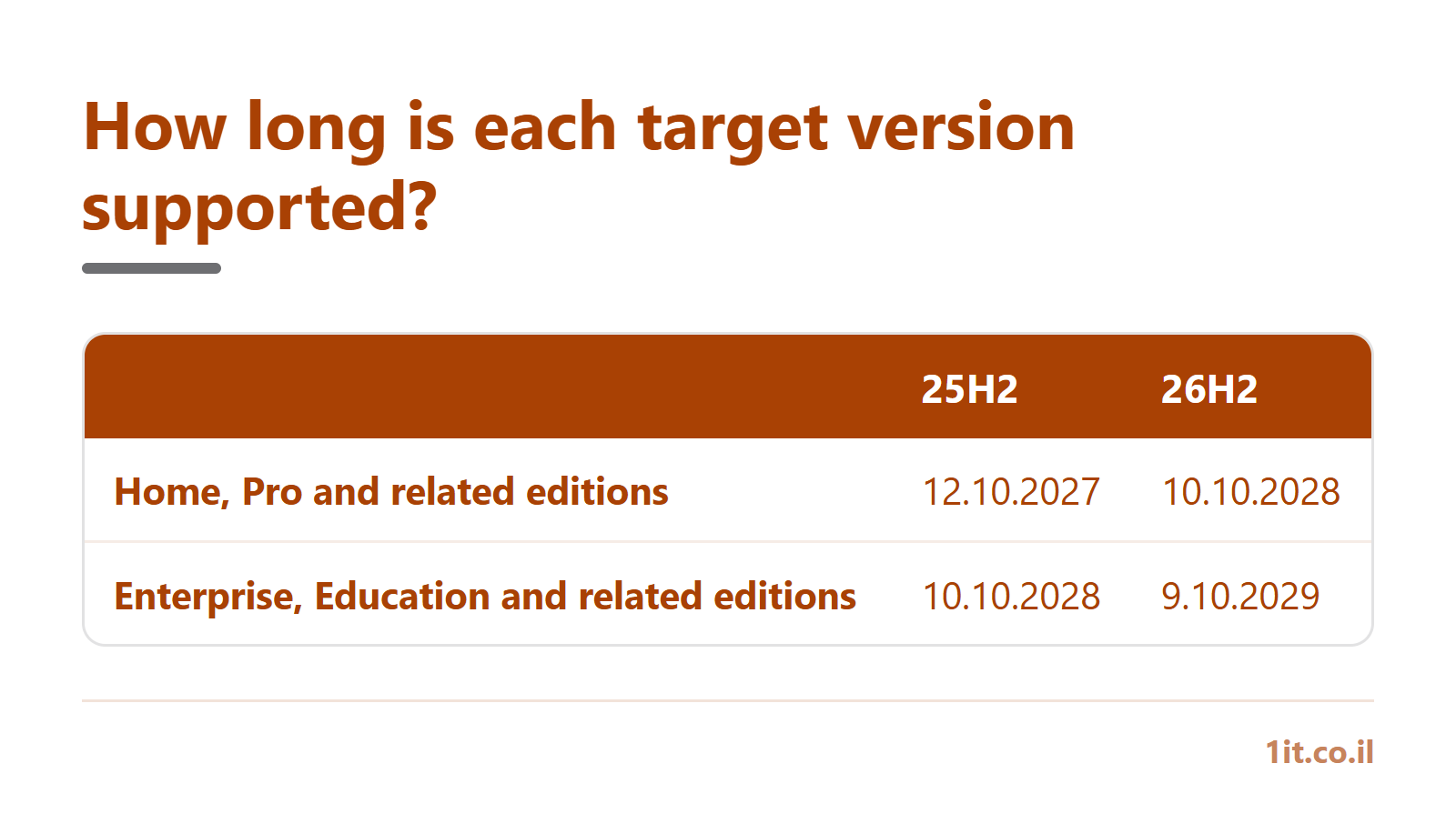
Target version in the General Availability Channel | End of updates: Home, Pro and related editions | End of updates: Enterprise, Education and related editions |
|---|---|---|
25H2 | 12.10.2027 | 10.10.2028 |
26H2 | 10.10.2028 | 9.10.2029 |
Do not choose 24H2 as the target for a Pro PC: support for that edition ended on October 13, 2026. Before changing editions, verify actual licensing entitlement; changing a label in the project plan does not grant an Enterprise license. Compare a supported upgrade with workstation replacement based on hardware condition and required applications. Use business hardware services when compatibility checks or the PC's condition indicate a need for replacement, without bypassing system requirements.
Workstation condition | Practical decision |
|---|---|
Hardware and applications support a supported version | Upgrade after a pilot |
Known compatibility hold | Address the blocker and plan next steps using Microsoft documentation |
Hardware does not meet target requirements | Consider replacing the PC |
Critical application without confirmed compatibility | Check with the application vendor and document an interim plan |
Why isn't the upgrade appearing in Windows Update?
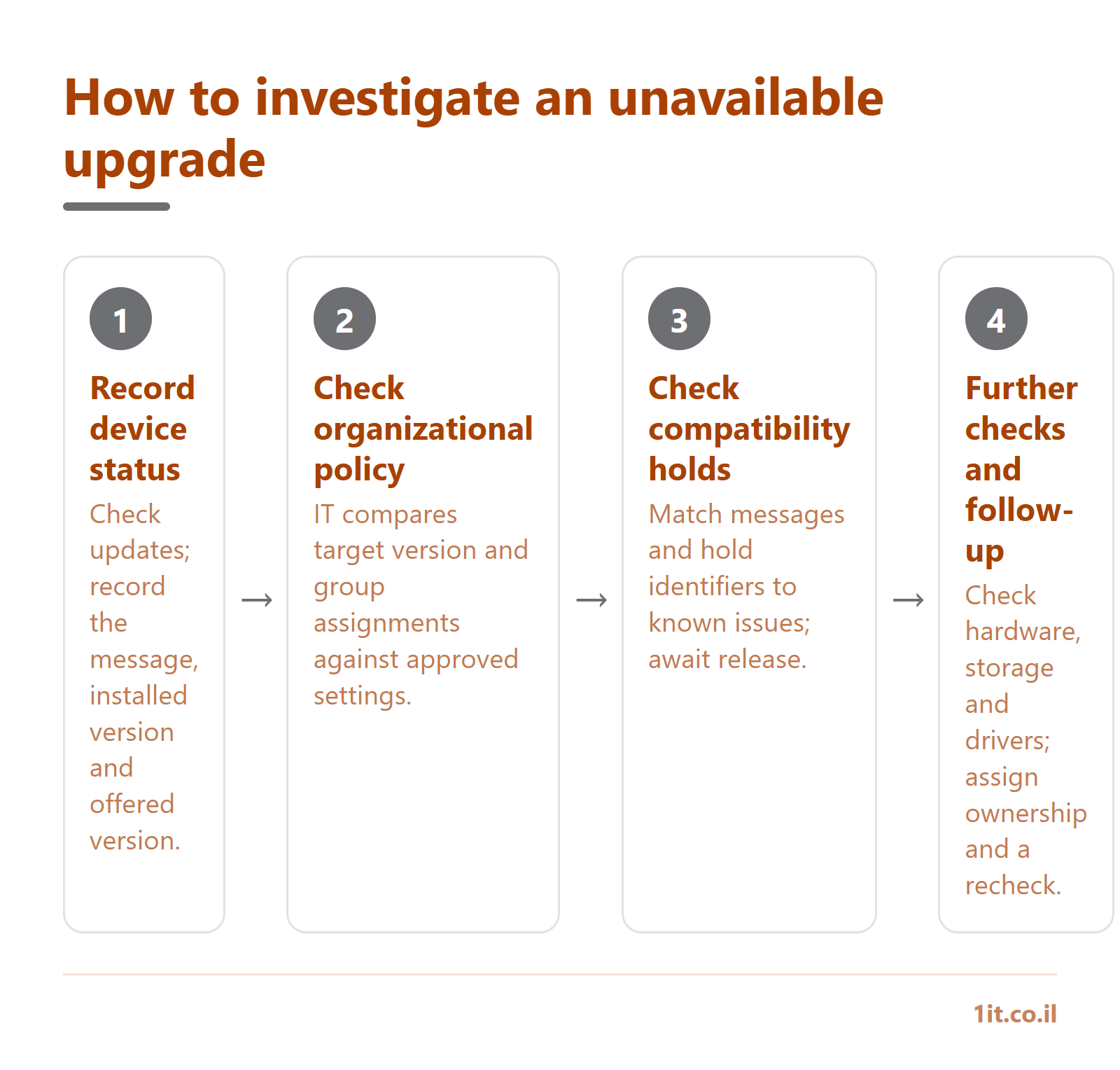
An upgrade may not be offered because of organizational policies, a configured target version or a compatibility hold, so investigate with the IT manager. On the workstation, open Settings > Windows Update > Check for updates, using the corresponding labels in a Hebrew interface. Record the message and the version offered. Users should not change policies themselves on a managed PC. Start by comparing the installed version with the organization's configured version for that workstation.
3. Check policies and compatibility
The IT manager should check Devices > Windows > Windows updates > Feature updates in Intune. Compare Feature Update Version and group assignments with the approved target and the workstation's current report. According to the policy documentation, a target version can remain enforced until the policy is changed or removed.
A safeguard hold is an upgrade block intended to prevent installation on a device affected by a known issue. Check 26H2 known issues or the page for your chosen target, and compare them with messages and hold IDs in the report. Microsoft recommends waiting for the issue to be resolved and the hold released. Do not switch to a manual installation simply because no upgrade is offered. Also check hardware, available storage and drivers. Assign an owner and a review date to each blocker.
How do you deploy the upgrade and verify that work is back to normal?
A business rollout is complete only after work and updates have been checked on every workstation, beyond a successful installation message. Before starting, the IT manager should verify appropriate backups and perform a documented restore test. Ensure that recovery keys for BitLocker, Windows drive encryption, are available to authorized staff through a secure channel. The operations manager should schedule a maintenance window around service needs, without promising a uniform installation time. Prepare a plan to resume work if the upgrade fails, and check rollback options and their limitations in your environment beforehand.
4. Run a pilot with the relevant business owners
The IT manager and application owners should test accounting software such as Hashavshevet or Priority, ERP, VPN, printers and scanners according to actual use. Document opening a file, generating a report and printing a test page. Check that a replacement employee can sign in with permissions appropriate to their role; do not broaden permissions to work around a fault. Completion evidence is an acceptance form approved by the responsible user.
5. Deploy and verify every workstation
After pilot approval, the IT manager should deploy in groups, compare winver with the target version, and verify installation of an appropriate security update and the absence of unresolved update errors. Compare the build number with the official update history for that version. Record the date, result and user approval, leaving the success field blank until verification.
For the Israeli context, the Privacy Protection Authority's guide to the Privacy Protection Regulations (Data Security) discusses keeping systems current and updating them according to vendor instructions. When workstations access personal information, involve the people responsible for information security and privacy in reviewing exceptions and alternatives. This review is separate from technical installation approval; do not present antivirus as automatic authorization to continue using an unsupported version.
Checklist to copy into your tracking spreadsheet:
- Inventory: edition, version, user and owner recorded for every workstation.
- Readiness: compatibility, backup, restoration and authorized access to BitLocker keys checked.
- Approval: pilot, maintenance window and recovery plan documented.
- Completion: target version, security update, applications and user approval verified.
Frequently asked questions
We use Windows 11 Pro in our business. Has support already ended?
Will the PC stop working, and should we install the November update?
How do we verify that all business PCs are receiving updates again?
What should we prepare for support when an upgrade fails?
Related posts
Microsoft 365 Security: 10 Settings Every Israeli Business Must Configure in 2026
Phishing, account takeover and Business Email Compromise are the #1 threat to Israeli businesses. A practical guide - 10 Microsoft 365 security settings that block most attacks before they start.
What Is MDM? A Guide to Mobile Device Management | 1iT
Learn what MDM is, how it protects company devices, and what businesses should consider before implementing a mobile device management solution.
PHP2Shell: What to Ask Your Business Website Host Today
A message to send your host, PHP patch versions and an evidence checklist to verify the fix and test leads, orders and payments.