
Slow Work Computer? Identify Whether the Problem Is the PC, Network or Business System
Diagnose a slow work computer: checks for employees and IT, ways to isolate network and application issues, and when to repair, upgrade or replace.
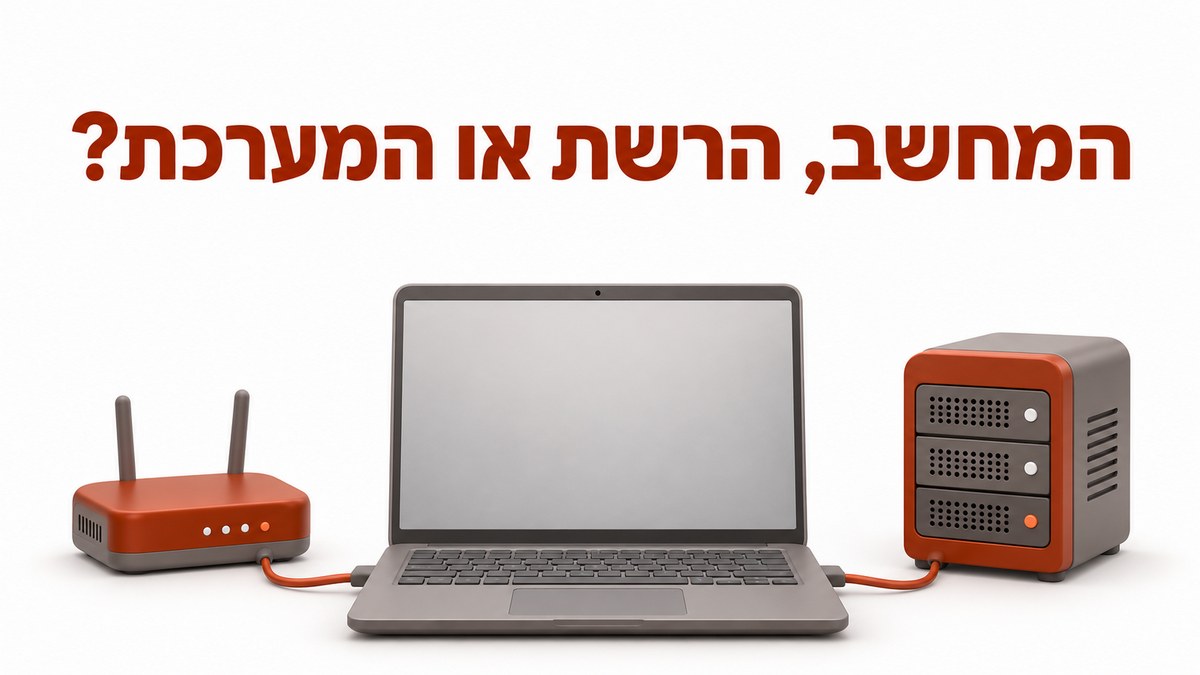
A slow work computer delays customer replies, invoicing and document work. To get back to work, save your files, restart and check whether the slowdown affects the whole computer or just one application. Before arranging a repair or buying a replacement, compare one employee with several employees, and a local file with a shared system.
This guide focuses on business Windows 11 computers and the division of responsibility between employees and IT. A managed computer is one the business configures and maintains through policies and management tools. Employees can document symptoms and perform basic checks; changes to security, backup and infrastructure components require IT involvement. Updated: 3 November 2026.
1. Slow work computer: how do you distinguish a computer issue from a network or business system issue?
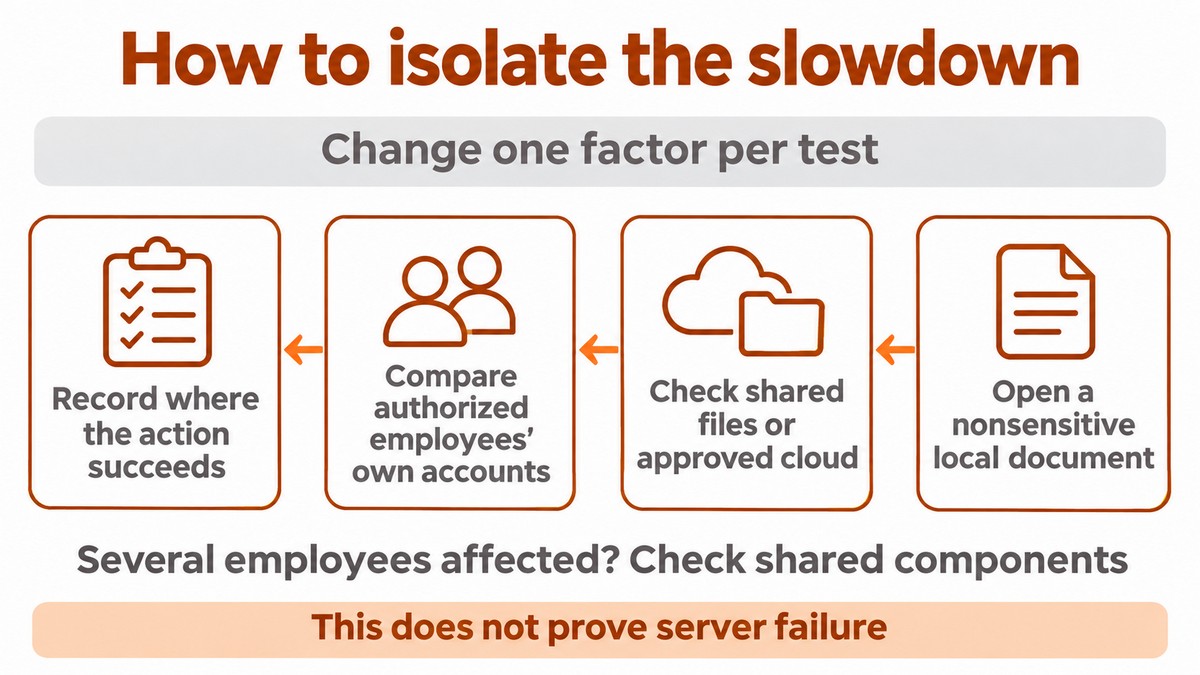
Compare the same task on different computers and connections, changing one factor per check. Open a local document that contains no sensitive information and check whether it is slow too; then test a shared file or an approved cloud service. Ask other authorized employees to perform the same task using their own accounts. If several employees struggle with the same system, investigate a shared component, although this does not yet prove the server is faulty. Record where the task succeeds as well.
If the computer is fast at the office but slow at home, work with IT to check the home connection and the route into the organization. A VPN is an encrypted connection to the organization's network; remote desktop displays a work environment running on another computer. Slowness in the remote environment may come from the connection or the host computer. Compare a wired connection with Wi-Fi where organizational policy permits, without bypassing a required VPN. For more detail, see accessing accounting software from home.
Symptom | Focused check | Possible explanation | Action and responsible role |
|---|---|---|---|
Slow startup in the morning | Check processes and update status | Startup load, scanning or synchronization | Employees document; IT checks scheduling |
Local file opens slowly | Compare with another local file | Application, storage or memory | IT checks resources and drive health |
Only network files are slow | Compare with another authorized employee | Network, server or the file itself | IT compares connection routes and checks the server |
Slow browser | Close unnecessary tabs | Tab load, extension or website | Employees reduce load; IT checks extensions |
Slowdown after extended use | Check heat, ventilation and load | Overheating or a resource-heavy process | Employees clear air vents; IT diagnoses |
2. What can employees check before opening a support ticket?
Employees can perform reversible checks under organizational policy and record what changes after each action. Start with the computer connected to a suitable charger and its air vents unobstructed, without opening the case. Close documents you do not need and avoid checks that require installation or administrator privileges. Microsoft's performance guidance includes resource monitoring, updates and malware scanning. Malware is malicious software that can consume resources and put information at risk. On a business computer, use the protection framework the organization has in place.
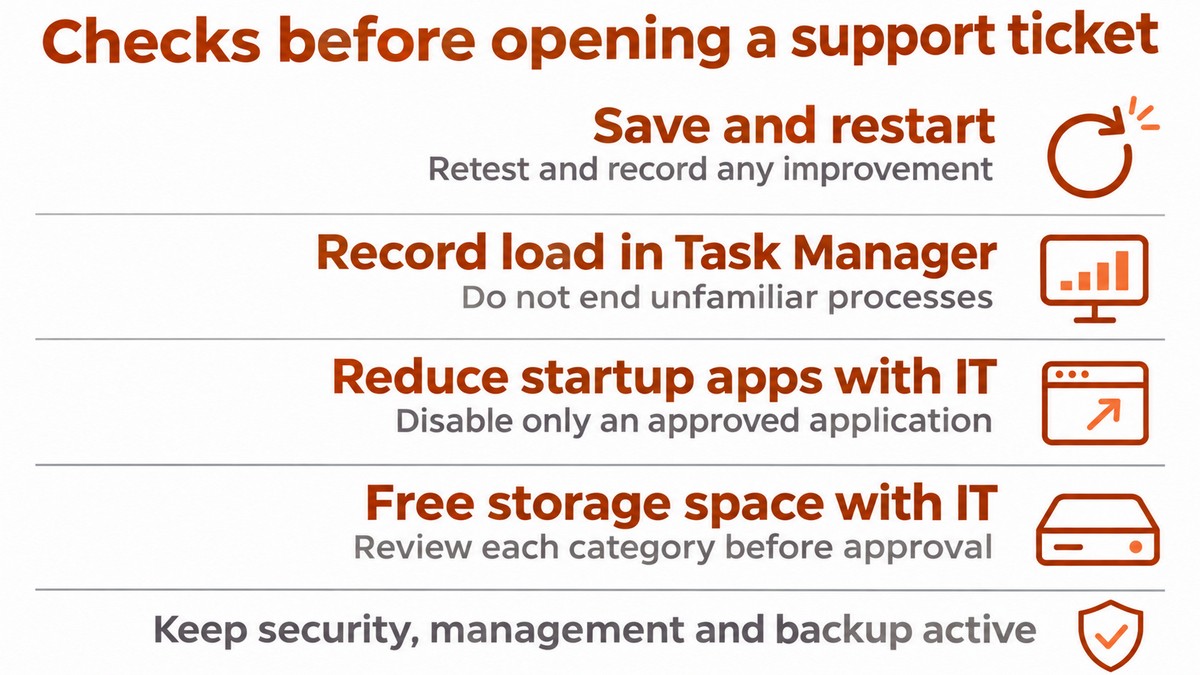
- Employees: save and restart. Save files and select Restart from the power menu. After signing in, repeat the task that was slow and record whether it improved. Do not force a shutdown while updates are installing.
- Employees: document resource usage. Press Ctrl+Shift+Esc to open Task Manager. In Processes, sort by CPU, Memory and Disk: processor, working memory and storage. Capture the leading processes while the problem occurs, excluding sensitive business information; do not end a process you do not recognize.
- Employees with IT: reduce startup activity. In Settings > Apps > Startup, review applications that launch at sign-in. Disable only an application approved as unnecessary at startup, following Microsoft's instructions. Record its name and the result of testing after a restart.
- Employees with IT: free up space carefully. In Settings > System > Storage > Cleanup recommendations, review the proposed deletions. Check each category before approving, particularly downloads and synchronized files. The drive cleanup guide explains the tool; record available space before and after.
Keep security, management and backup components running, even if they appear at the top of the list. In Settings > Windows Update, check whether an update is running or a restart is required, subject to your permissions. Run a security scan using the organizational tool and support guidance, without installing another antivirus product. If you see security alerts, a ransom demand or suspicious file changes, stop independent troubleshooting and report to IT from a safe device; slowness alone does not establish a cyber incident.
3. Why are only Outlook, Teams or the business system slow?
When one application is slow, check that application and its underlying service before attributing the problem to the whole computer. In Outlook, record whether opening, searching or sending mail is slow, and compare with the browser version if approved. In Teams, distinguish slow application startup from a choppy call. In OneDrive, check the sync icon and error messages. Close unnecessary browser tabs; leave extension checks and removal to IT when extensions are managed. Capture the error message rather than customer content.
In a customer relationship management system (CRM) or enterprise resource planning system (ERP), identify the task that stalls: signing in, searching, saving or generating a report. IT should compare authorized users, an installed application versus a cloud service, and the provider's service status. Morning slowness may coincide with application startup, updates, scans and accumulated synchronization work. If it recurs, request a review of scheduling and shared load. Microsoft 365 management is relevant when the issue originates in workplace services rather than workstation hardware.
4. When should you repair, add RAM or an SSD, or replace the computer?
Repair a faulty component, upgrade a measured limitation, and replace the computer when there is no suitable path to continued, supported work. RAM is the working memory applications use; an SSD is a storage drive without moving parts. According to Dell's slow-performance troubleshooting guide, consider more memory when usage remains close to its limit, while replacing a mechanical drive with an SSD may improve performance. IT must check compatibility and upgrade options for the specific model: some computers have soldered memory that cannot be upgraded.
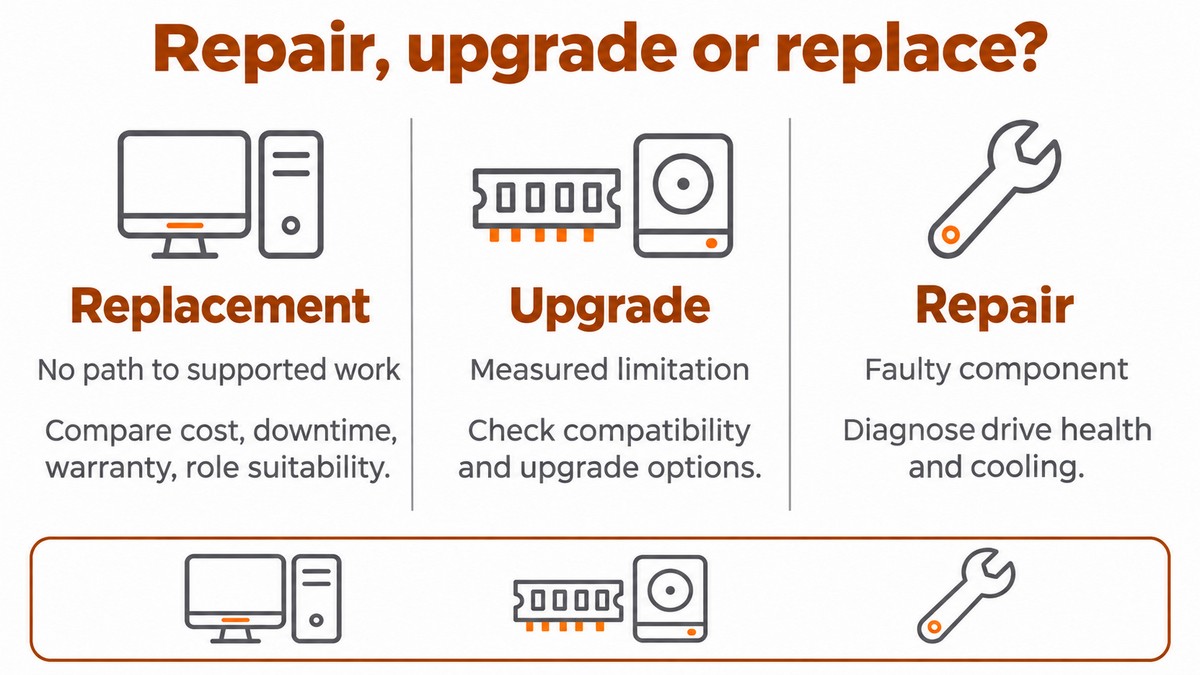
A single snapshot of high usage does not justify a purchase: a busy processor may be doing legitimate work, and a busy disk may be handling a scan, synchronization or a memory shortage. Ask IT to examine load throughout the task, drive health and cooling. Read errors, crashes and unusual noise warrant professional diagnosis before stress testing. For the business decision, compare quotes in shekels covering parts, labor, data transfer and required licensing, alongside downtime, warranty and suitability for the role. No fixed percentage mandates replacement; see the business hardware page for help.
Check operating system support before investing, too. Regular support for Windows 10 Home and Pro ended on 14 October 2025; Microsoft documents an ESU program for organizations, a subscription for extended security updates under defined terms. IT should check edition, eligibility, activation and Windows 11 compatibility. Separately, for database systems covered by the regulations, Regulation 13(c) of Israel's Privacy Protection Regulations (Data Security), 5777–2017 — תקנות הגנת הפרטיות (אבטחת מידע), התשע״ז–2017 requires ongoing updates and an appropriate security response where the manufacturer no longer supports security aspects. Apply the decision according to the requirements that cover your organization.
5. How do you prepare for remediation and verify that work is back on track?
Prepare with verified backup, a problem description and an acceptance check that repeats the delayed business task. Before replacing a drive, reinstalling or making a significant change, IT should inventory local files, mail archives, application settings and licenses. Verify what is backed up and test restoration of an appropriate item; a sync icon is not evidence of a restore test. Reformatting is not the first step because it requires downtime and reinstallation, and may not address a network, server or hardware problem. Avoid acceleration tools and registry cleaners from unfamiliar sources.
Include the computer name, application and version, when the issue began, work location, VPN use, other affected employees, the precise task and screenshots of errors or resource usage without sensitive information. IT should record the cause identified and the change made; employees should confirm they can complete their work. For before-and-after measurement, use the same file or application under similar conditions and record the actual opening time. This is a process for measuring improvement, not a documented customer case. Close the ticket with the result and user confirmation.