
Accessing Hashavshevet from Home: Choosing a Connection, Acceptance Tests and Cost Components
Access Hashavshevet from home: choose a connection for your setup, arrange permissions and licensing, run acceptance tests and clarify costs and responsibilities.

Working with Hashavshevet from home should allow your team to use shared data, issue documents and save files in an approved location. Start by identifying your existing installation and choosing an access method that the providers approve for your configuration and licensing. Establish who approves the connection, which tasks will be tested and what the provider’s quote includes.
Accessing Hashavshevet from home starts with identifying your installation
The right connection method depends on where Hashavshevet and its data run today. Ask your IT owner to record the product name, installed release, database location and how employees connect in the office. Identify whether you have a standalone computer, workstations connected to a server or an existing remote workspace. Include the number of people who need simultaneous access, including your accountant, and connected systems: scanning, payment processing, inventory and document generation. The result should be an approved inventory of infrastructure and dependencies, rather than a guess based on a shortcut icon.
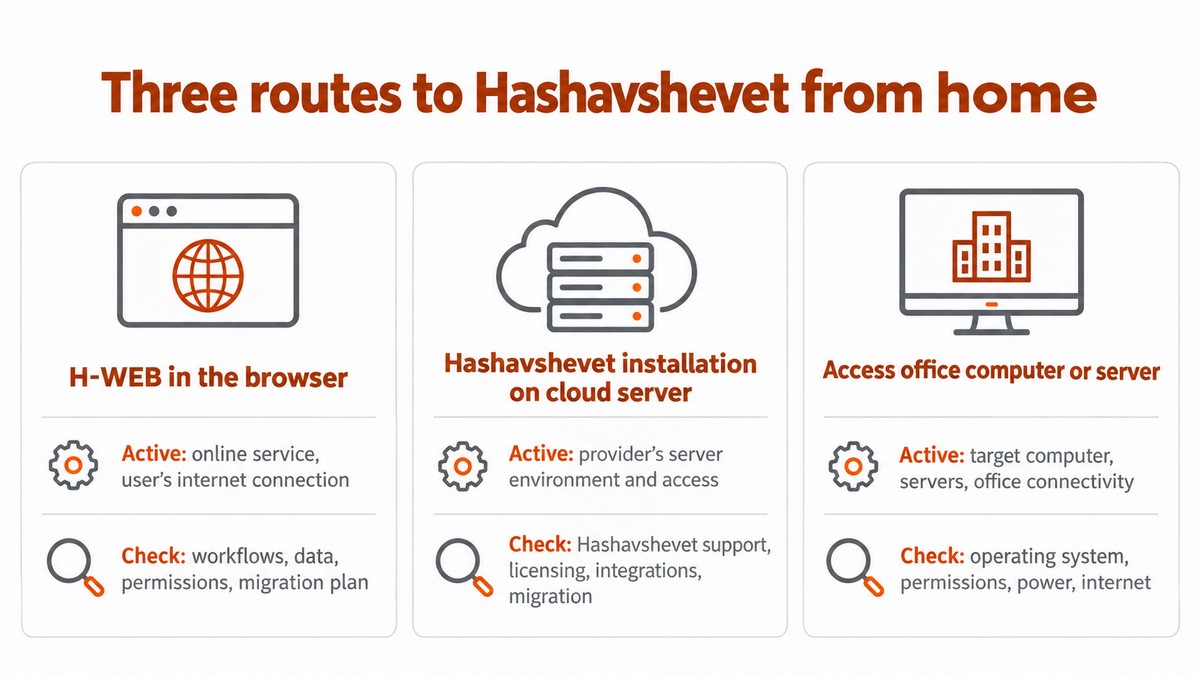
According to the H-WEB website, the system is offered as cloud software as a service (SaaS), as a parallel system to Hashavshevet for Windows. This is a separate option from accessing your existing installation. Before choosing, ask Hashavshevet to confirm the compatibility of modules, reports, integrations and data, along with the licensing details relevant to your business. For further information, see Hashavshevet’s H-WEB page. Ask for the confirmation to specify its date of issue and the supported access environment.
Access method | What to check before choosing | What must remain available |
|---|---|---|
Access to the office installation | Approval of the connection method, operating system suitability, permissions and licensing | Ask your IT owner to specify which computers, servers and network connections are required |
A workspace hosted by a cloud provider | Approval of the access environment, Hashavshevet support for the configuration and the migration process | Ask your infrastructure provider to specify the required service components and dependencies |
H-WEB as an online service | Confirmation of workflow and data compatibility, permissions and a migration plan | Ask your product provider to specify the supported access environment and connectivity requirements |
How do you connect using your existing infrastructure?
Ask your IT owner for instructions that distinguish network login, workspace login and application login, with a contact for each service layer. Obtain an approved access address or profile, along with approval for the computer and account you will use. Ask them to specify which office computers and servers must remain available for the connection.
For a cloud environment, ask your infrastructure provider to confirm the supported workspace and connection tools. According to the H-WEB website, users sign in to the software with Google or Microsoft accounts. Ask the provider to confirm which accounts and authentication methods are supported in your environment, and check separately whether multi-factor authentication is enforced. Do not install a standalone copy of Hashavshevet at home without instructions from your software provider and IT owner.
How do you protect accounting data?
Check with the person responsible for legal matters which legal requirements apply to the information and remote access to it. Refer them to the Israeli Privacy Protection Authority’s guide as well. Document the confirmed requirements and who is responsible for implementing them. Distinguish between legal obligations, commitments defined in the service agreement and operational recommendations; the checklist in this article does not constitute confirmation of legal compliance.
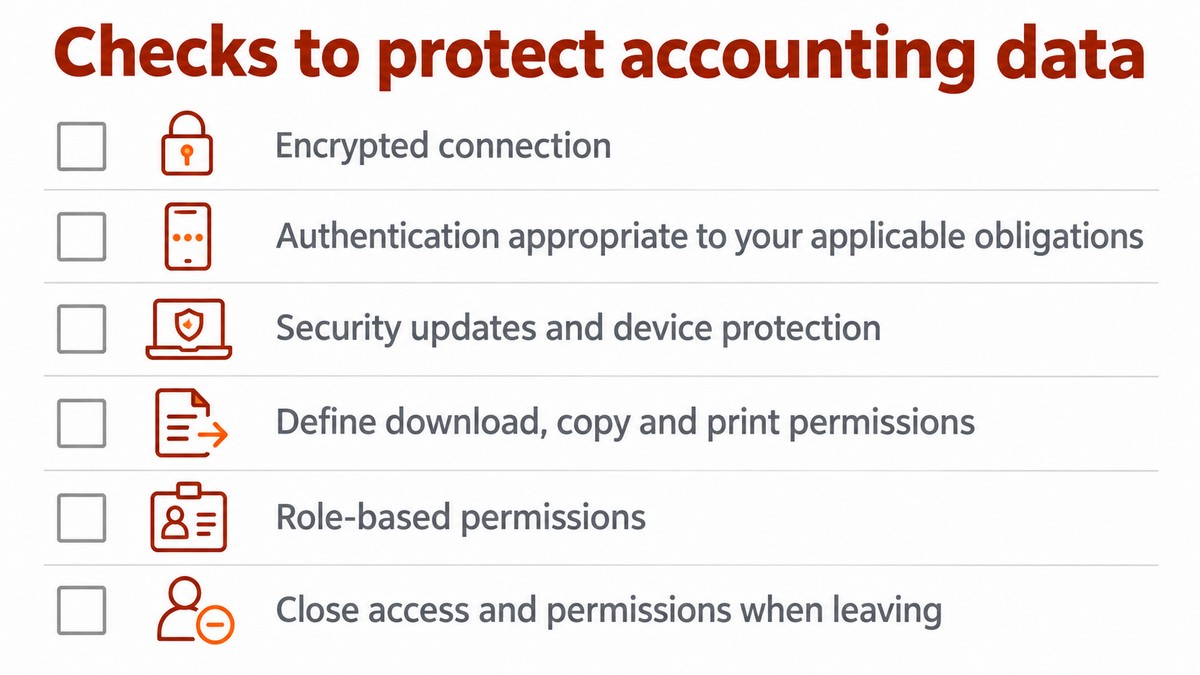
As an operational recommendation, configure multi-factor authentication at the appropriate access layer and verify that it is enforced. According to Microsoft’s documentation, RD Gateway can be integrated with Microsoft Entra multifactor authentication using the NPS extension. Ask the provider to confirm the configuration, supported authentication methods and licensing required for the integration. See also the guidance on planning access through RD Gateway. Do not expose direct desktop access to the internet as a shortcut. Your IT owner should check security updates and device protection, and define what users may download, copy and print. A personal computer shared with household members is not an appropriate default for financial work.
The finance manager should separately approve permissions for viewing data, entering transactions, generating documents and administrative actions. Update permissions when roles change, and close both remote access accounts and application access on departure as appropriate. Verify that replacement employees can perform their duties with their own accounts, without receiving a former employee’s password. Document the approver and the permission check using a standard account. The business password management guide also helps organize shared access where it is necessary and permitted.
How do you test printing, files and connection issues before the working day?
Instructions for checking printer redirection over a Windows connection are provided in Microsoft’s documentation on troubleshooting printer redirection.
Issue | Employee’s first check | IT team’s check |
|---|---|---|
Login fails | Approved address, account and error message | Account lockout, authentication and access service |
Office computer unavailable | Whether this is the correct target computer | Power, sleep mode and connectivity |
Disconnections or slow performance | Whether other services at home are also affected | Home and office connections, server load and task scheduling |
Printer does not appear | Whether it prints locally | Redirection, policy and compatibility |
Exported file cannot be found | Save path in the export dialog | Permissions and an agreed organizational path |
Which cost components and responsibilities should the quote cover?
The total cost includes software licensing, access rights, infrastructure, setup and ongoing operations. Request a quote in shekels that separates Hashavshevet and module licensing, connection tools or server licensing as needed, storage, backup and support. According to Microsoft’s RDS licensing documentation, RDS CAL licenses are offered per user or per device. Request confirmation that the licenses are appropriate for the server version. The Windows Server 2025 licensing guidance does not replace the license terms. Ask your hosting provider to specify in writing which licensing model applies to the quote and what it includes, and verify usage rights with Hashavshevet. Ask for the confirmations to specify their dates and the configuration they cover.
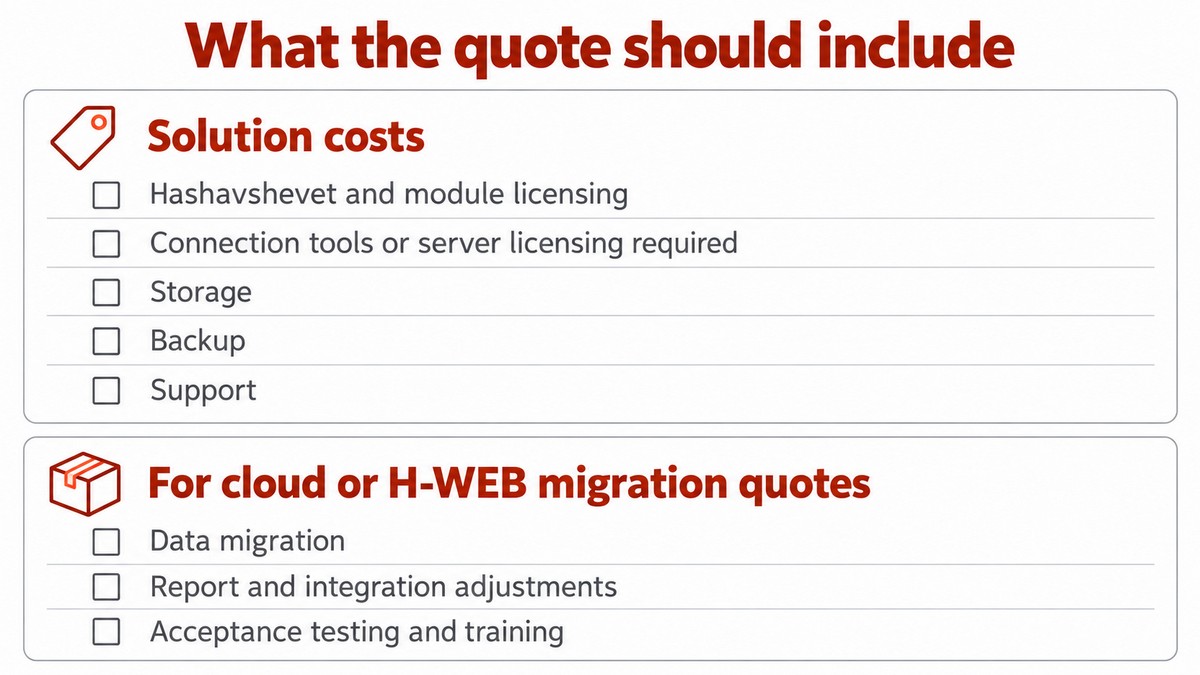
For a migration to a cloud server or H-WEB, request an itemized scope covering data transfer, report and integration adjustments, acceptance testing and training. For each component, specify the responsible provider, the expected deliverable and whether it is included in the price or requires an additional payment or agreement. The finance manager and IT owner should jointly approve the migration date, how balances will be verified and a rollback plan if testing fails. Also compare support hours, provider dependencies and the ability to retrieve your data when the service ends. These matters need to be addressed contractually; the operational recommendations in this guide do not automatically make them provider commitments.
A cloud server does not demonstrate that a recoverable backup exists, and a fast home connection does not guarantee fast system response. Request documentation of what is backed up, where backup copies are stored, how much data might be missing after a restore and the agreed recovery time objective. Assign responsibility for problems involving software, infrastructure and internet connectivity, and request evidence of a recovery test. Recovery testing and backup monitoring are part of operational readiness; availability and response times depend on the service agreement and actual conditions.