
SSO Implementation for Businesses: Steps, Costs and Checklist
Prepare for SSO: map applications and responsibilities, review licensing and costs, connect work tools, run a pilot, and plan emergency access and maintenance.

SSO implementation helps centralize access to work tools when separate accounts make access management difficult. Map applications, responsibilities and accounts before choosing integrations and purchasing licenses. This guide focuses on preparation, connecting through Microsoft Entra ID or Google Workspace, reviewing costs, piloting and maintenance.
1. Assigning responsibility for authentication, authorization and account management
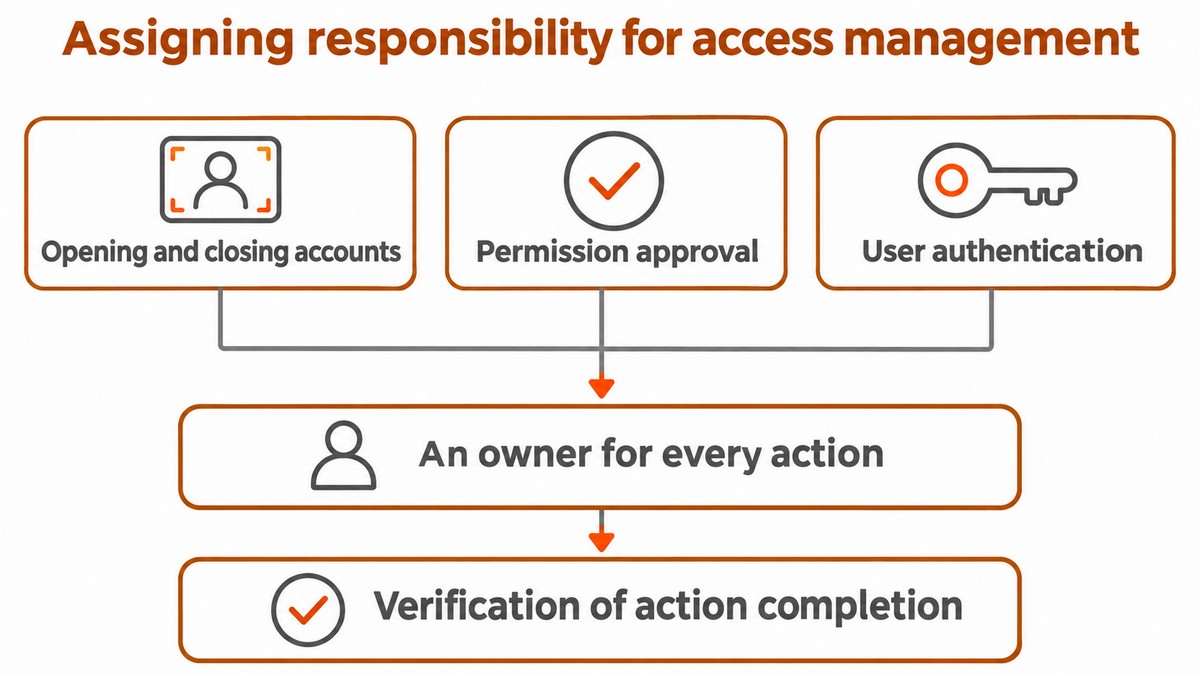
For each application, document who handles user authentication, who approves permissions and who creates and closes accounts. The business process owner should approve the roles needed for work; IT and the application administrator should verify that the settings on both sides implement that decision.
For each application, check and document whether a supported method exists for creating, updating and disabling accounts, and what requires manual action. Assign an owner to each action and define how completion will be verified so that connecting sign-in does not leave accounts unmanaged.
2. Preparing your organization for SSO implementation
Before implementing SSO, choose a central user directory and confirm that every application has a supported integration and appropriate licensing. If you already use Entra ID or Google Workspace, check your existing environment first. The operations manager maps systems, business owners and critical processes; IT checks administrative permissions, domain ownership and verification, user addresses and guest accounts. The deliverable is an approved readiness matrix that also includes service accounts and local sign-ins that could remain outside corporate controls.
Choose an integration that the application and identity provider actually support, following their integration instructions. The software vendor should confirm the connection method, subscription tier and support process; the business should approve groups and roles, and the IT provider should document configuration and testing on both sides.
Environment or application | Connection method to check | Licensing and dependencies |
|---|---|---|
Microsoft Entra ID | Gallery connection or supported integration | Assigning groups to an application requires Microsoft Entra ID P1 or P2 and does not include nested groups, according to <a href="https://learn.microsoft.com/en-us/entra/identity/enterprise-apps/assign-user-or-group-access-portal">Microsoft documentation</a>. Check integration entitlement and Conditional Access licensing requirements separately. |
Google Workspace as identity provider | Preintegrated or custom SAML app | Check eligibility in your environment and application support. Configuring a custom SAML app requires Super administrator privileges, according to <a href="https://knowledge.workspace.google.com/admin/apps/set-up-your-own-custom-saml-app?hl=en">Google's instructions</a>. |
SUMIT Books | SAML connection following vendor instructions | According to <a href="https://help.sumit.co.il/books/he/articles/13940158-הפעלת-אימות-משתמשים-באמצעות-sso-saml">SUMIT Books documentation dated June 1, 2026</a>, the service is available on the Diamond tier or higher. The Microsoft Entra ID connection instructions include contacting support with the configuration details. |
Legacy system | Check for a supported corporate integration | If no supported integration exists, consider an upgrade, a supported access gateway or replacement. Until the solution is in place, manage individual accounts and access revocation through a documented process. |
3. Connecting work tools and testing the employee experience
For a SAML connection, obtain the Entity ID and ACS URL from the application vendor and configure them according to the connection instructions. Supply the application with the required identity provider details and signing certificate or metadata file, following Google's instructions for configuring a SAML app. For other integrations, follow the application and identity provider instructions and document the approved settings.
Employees should see a familiar sign-in that returns them to the correct account without creating a duplicate. When an error occurs, IT compares the email address and user identifier sent, the domain, user assignment and the existing application account. An email alias is not necessarily the sign-in identifier the system expects. Illustrative scenario, not a customer case study: an employee signs in to Google successfully, but the service tool identifies her using an address from a previous domain. The solution is an approved mapping that preserves the existing account, after checking data ownership and permissions.
4. Reviewing costs and conditions for enforcing SSO
Project costs include identity licensing, application upgrades, implementation work and maintenance after launch. Use the licensing and dependencies table to prepare your review, and check Microsoft's current Conditional Access documentation for eligibility to use the capability and risk-based policies. Verify that licensing covers the planned users and capabilities. Request a quote in shekels separating recurring charges, one-time work, VAT and SaaS subscription commitments.
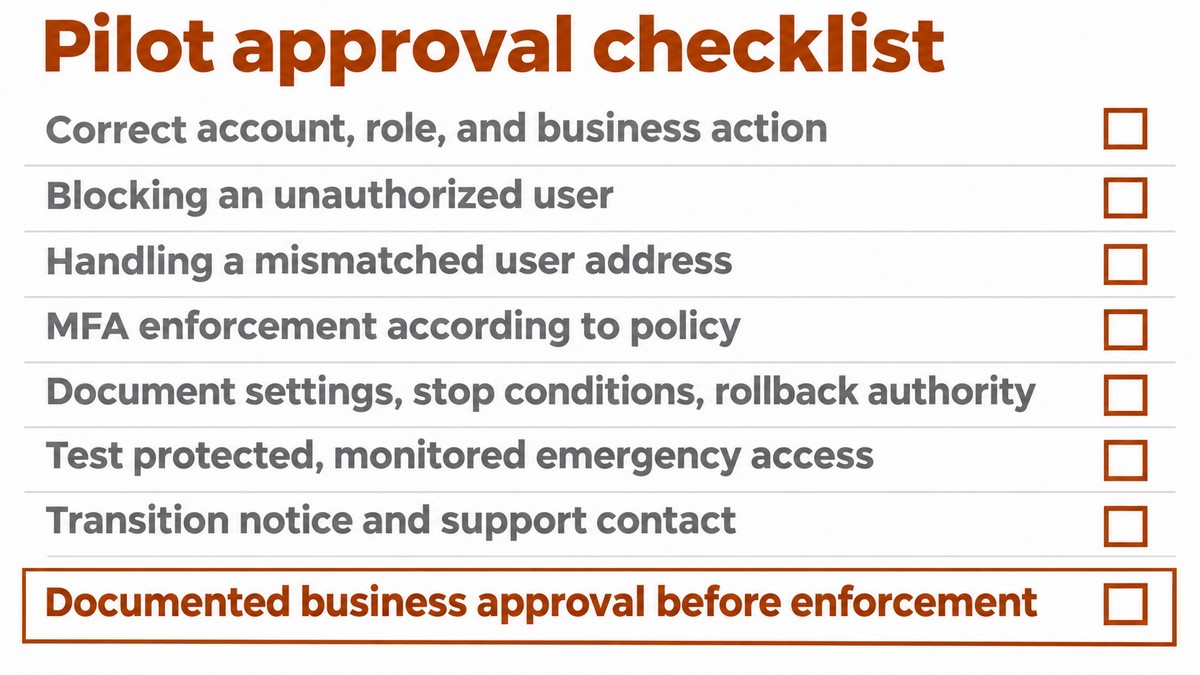
Project duration depends on system and vendor readiness, while the enforcement date depends on pilot results. For a defined proposal, assume an existing user directory, a verified domain, supported integrations and no custom development; identify exceptions and legacy systems separately. The project manager obtains a configuration and issue-resolution deadline from each vendor. Before launch, the business process owner confirms that required work tasks succeeded, unauthorized users were blocked and rollback was tested. This supports an evidence-based decision without letting a target date replace verification.
Pilot approval checklist
- Application owner: Confirm sign-in to the correct account, the appropriate role and completion of a representative business task.
- IT: Verify that a user without permission to access the application is blocked.
- IT: Test how the system handles a user address that does not match the existing account.
- IT: Verify that MFA is enforced according to the configured policy.
- IT and management: Document previous settings, stop conditions and who is authorized to approve a rollback.
- System administrator: Test protected, monitored emergency access according to vendor guidance.
- Operations manager: Prepare an employee transition notice and a support contact address.
- Business process owner: Document approval of pilot completion before enforcing SSO.
5. Reducing lockout risk and maintaining access after launch
Reduce lockout risk through previously tested emergency access, staged access policies and assigned maintenance responsibility. Centralize sign-ins with MFA and consider phishing-resistant methods where supported, because centralizing identity increases the importance of protecting the account. An emergency administrator account does not guarantee SaaS access during an identity provider outage; each application needs its own approved recovery route. Assign responsibility for renewing certificates and secrets, expiration alerts, log reviews and incident escalation. To plan for employee needs, also use the guide to moving Microsoft Authenticator to a new phone.
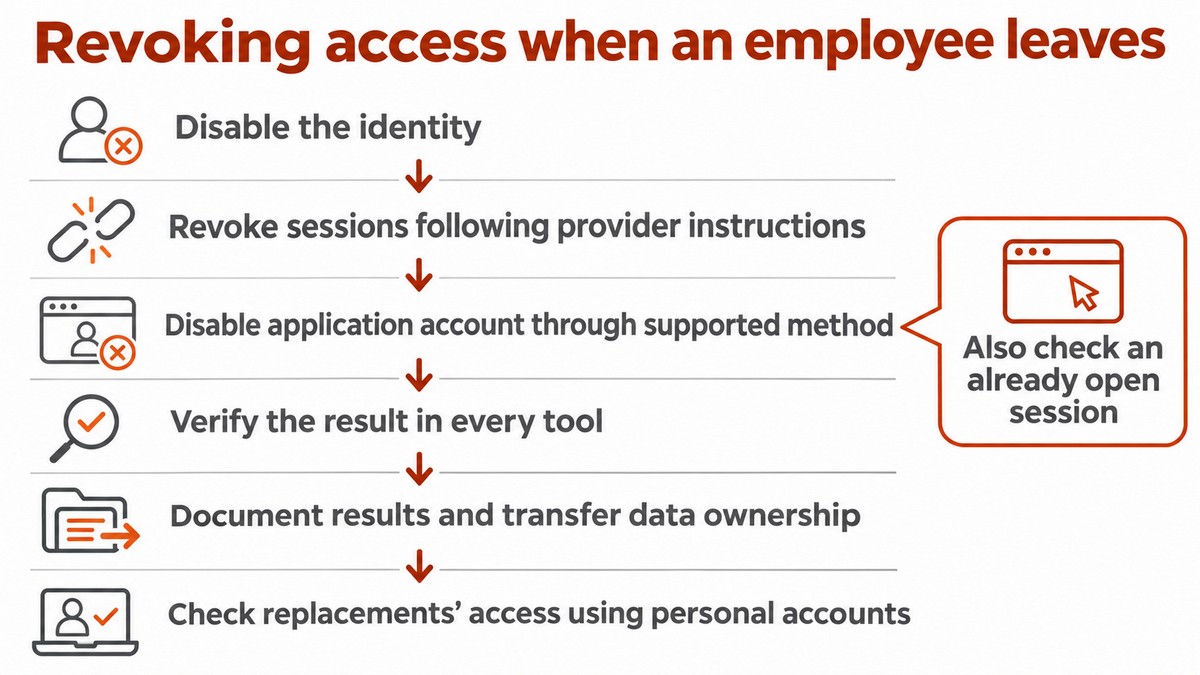
An offboarding test must include an existing application session, because blocking the identity provider account does not necessarily terminate it. Microsoft's access revocation documentation explains that the application controls the session it creates and that access revocation may take time, depending on the environment. The system administrator should disable the identity, revoke sessions according to vendor instructions and verify the result in every tool, including disabling the application account through its supported method. Document results, transfer of data ownership and replacement staff access through their own individual accounts. After a role change, remove previous permissions and reassess those required. Include these responsibilities in your employee onboarding and offboarding process.
Review the information security requirements applicable to your business and the systems you plan to connect with an appropriate legal adviser. Turn that guidance into tasks with assigned owners, documentation and completion checks. Keep permission approvals and test results accessible to authorized personnel.