
Transfer Microsoft Authenticator to a New Phone — With or Without the Old One
Transfer Authenticator on Android and iPhone, register Microsoft 365 again, and recover access when your old phone is unavailable.
To transfer Microsoft Authenticator to a new phone, you can restore a backup between devices running the same operating system, but work accounts also require sign-in and registration again. Replacing a phone without completing this process can leave employees unable to access email, files and Teams. If the old phone is available, keep it active until you have successfully tested sign-in on the new one; if it is missing, start with an alternative authentication method or your IT team instead of repeatedly reinstalling the app.
This guide is for employees and managers at businesses using Microsoft 365, and also explains how personal Microsoft accounts differ. Microsoft Authenticator is an app for approving sign-ins and generating verification codes. Before starting, establish whether the account is a work or personal account, whether the old phone is accessible and whether you are staying on the same platform. Last updated: November 3, 2026. These instructions follow current documentation; screen labels may vary by version and language.
Transfer Microsoft Authenticator to a new phone: choose your route before erasing
The right route depends on the availability of the old phone, the account type and the operating system. If the old phone works, you can use it to approve sign-in and register the new one. When switching between Android and iPhone, you cannot restore a backup across platforms: set up each account again through its service. For work accounts, even a successful restore on the same platform does not complete registration. Microsoft's transfer documentation explicitly distinguishes restoring an account name from restoring the ability to authenticate.
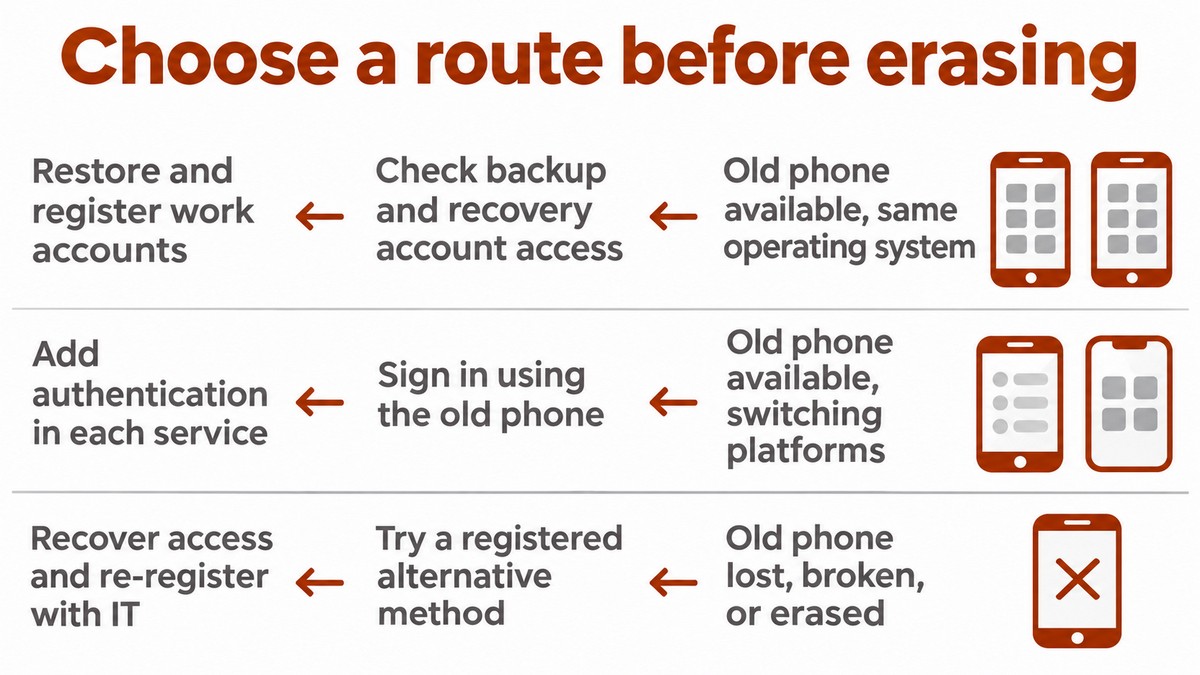
Before switching, employees should verify access to the backup account and prepare an additional authentication method that the organization allows and that is already registered. A security key or phone method may be suitable, depending on policy; do not assume every option is available. Operations managers should identify who will help if registration fails and which contact channel employees can use when email is inaccessible. Record the user, devices and selected route in the support ticket, without including passwords, verification codes or a QR code.
Your situation | First action | What you need to complete |
|---|---|---|
Old phone available; same operating system | Check backup and recovery account access | Restore and register work accounts |
Old phone available; switching platforms | Sign in to the service using the old phone | Add a new authentication method in each service |
Old phone lost, broken or erased | Try a registered alternative method | Recover access and register again with IT assistance as needed |
How do you back up and restore on Android and iPhone?
On Android, the current backup process runs within Authenticator using a personal Microsoft account; on iPhone, current documentation directs users to iCloud settings. Check the backup process on your device before resetting it, rather than relying on general phone backup being enabled. For supported personal accounts, one-time codes may be restored; passwordless sign-in requires setup to be completed. For work accounts, only the account name is saved. This distinction explains why an account can appear in the list without being able to approve sign-in.
After restoring, review accounts by business use: email, documents and external services. Employees should flag accounts requiring additional sign-in, and IT should verify that no essential service is left without an access method. Do not delete existing accounts on the new device just to reveal a restore button without checking how to recover them. The official restore guide explains recovery options and setup messages; successful installation does not establish that every account is ready for work.
- Android backup — employee responsibility: On the old phone, open Settings and enable Cloud Backup. Select the personal Microsoft account for the backup and confirm with OK. Verify that you can sign in to it and record that backup is enabled, without recording credentials.
- Android restore — employee responsibility: Install the official app on the new phone. Where Restore from backup or Begin recovery appears, select it before signing in normally and use the same personal account. The restored account list is evidence of restoration only.
- iPhone preparation — employee responsibility: Verify that iCloud Drive, iCloud Keychain and iCloud Backup are enabled. Go to Apple Account > iCloud > Saved to iCloud, find Authenticator and enable it. Check the same settings and the appropriate iCloud account on the new phone.
- iPhone restore — employee responsibility: Install and open Authenticator; current documentation says backed-up codes and names should appear. Complete sign-in for accounts marked Sign in to restore your account, and record which accounts still need attention.
Where do you find the QR code and register your Microsoft 365 account again?
The QR code for a work account appears when adding a sign-in method in Security info; you do not copy it from the old phone. On a computer, open aka.ms/mysecurityinfo and authenticate using the old phone or an alternative method. Employees perform this action in their own individual accounts; if organizational policy blocks registration, IT needs to investigate. Do not ask another employee to approve sign-in to your account or use a shared account to bypass the problem.
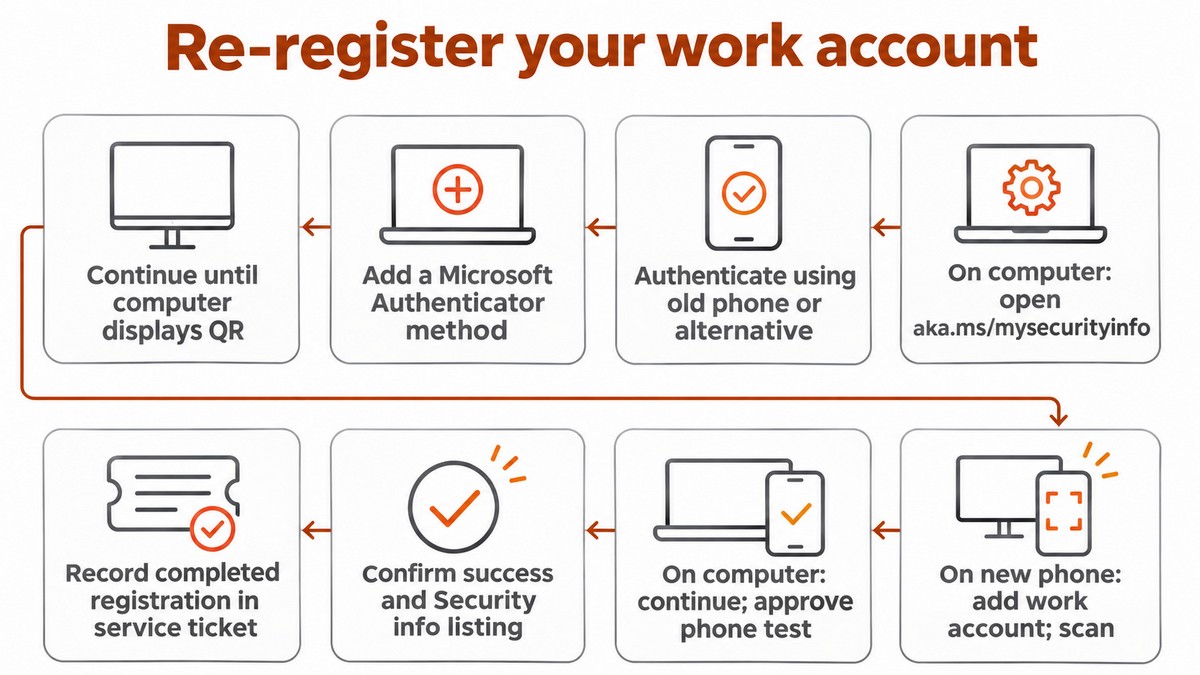
Continue until you receive a success message, rather than stopping when the account name appears in the app. Microsoft's account setup instructions and illustrated setup guide show registration and scanning screens. These are vendor screenshots; your interface may differ. Keep the test result and date in your internal records, rather than a screenshot of the QR code. If support requires screen sharing, use the business's established support channel.
- Add a method — employees: In Security info, select Add sign-in method, then Microsoft Authenticator and Add. Continue with Next until a QR code appears on the computer.
- Scan — employees: On the new phone, open Authenticator, select the plus sign or Add account, then Work or school account and Scan a QR Code. Scan the code displayed in your own setup session.
- Approve the test — employees: Return to the computer, select Next and approve the test request on the new phone, including number matching when required. Verify the success message and that the method appears in Security info; record registration completion in the ticket.
What if the old phone is unavailable or you are stuck in an authentication loop?
Without the old phone, access to a work account requires an already registered alternative authentication method or your IT team's recovery process. On the sign-in screen, select Sign in another way if offered. If no method is available, stop and contact support through an established channel. Changing the password alone does not replace a missing authentication method. If the phone is lost or theft is suspected, report it from a safe device so IT can also investigate access from the missing phone.
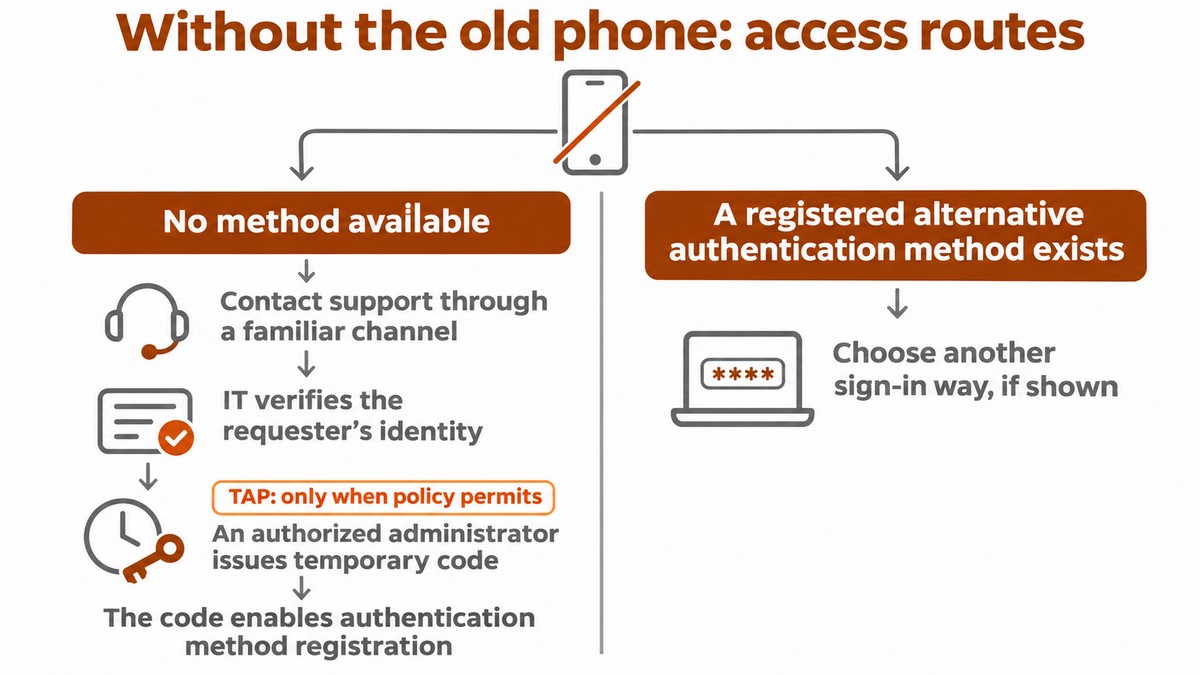
IT must verify the requester's identity before changing sign-in methods. Where organizational policy permits, an authorized administrator can issue a Temporary Access Pass (TAP), a time-limited passcode that enables authentication method registration. According to the TAP documentation, the method must be enabled and users included in the policy. Record who authorized recovery and whether registration succeeded; do not save the passcode in the ticket. Personal Microsoft accounts use personal account recovery routes, outside the business's administration.
Issue | What to check or do | Responsible party |
|---|---|---|
No restore option | Check the previous backup, recovery account and platform; an existing sign-in may hide the option | Employees, with support before removing accounts |
Accounts appear but do not work | Complete sign-in and registration for work accounts | Employees and IT |
Action required appears | Open the account and complete verification as instructed | Employees; IT if no method is available |
Approval requests arrive on the old phone | Verify registration and testing on the new phone, then review remaining methods | Employees and IT |
Registration asks for approval from the app that is not yet set up | Use an alternative method or an approved recovery process | IT if no alternative is available |
How do you verify completion and remove the old registration?
The transfer is complete only after an actual sign-in using the new phone and proper removal of the old authentication method. Employees should open a private browsing window and try signing in to Outlook or Teams with their work account, to test a sign-in that does not simply rely on an existing session. After success, remove the old phone's Authenticator registration in Security info, taking care to identify the correct entry. Uninstalling the app from the phone does not replace removing its registration from the account. Record successful testing and removal before resetting or handing over the device.
Check passkeys separately: these credentials allow authentication without typing a password. They are not part of Authenticator account backup: a key stored only on the old phone may need to be recreated, while one in a synced credential manager may become available after signing in to that manager. The operational recommendation is to test each method. IT managers should also verify that employees' permissions still match their roles; changing phones is no reason to expand access. Give replacement staff and employees in new roles their own access and test it through the onboarding and offboarding process.
In Israel, the Privacy Protection Authority explains that Regulation 9(b)(1) of the Protection of Privacy (Data Security) Regulations addresses identification, wherever possible, through a physical means under the authorized person's exclusive control, for databases subject to medium or high security levels. This does not specifically require Authenticator. Establish a phone replacement procedure suited to the security level and business policy, assigning responsibility for employee identification, registration and removal. We at 1iT help manage and protect the working environment through Microsoft 365 management.