
Network Printer Not Printing? Troubleshoot One Computer, Several Employees or the Whole Office
Diagnose office printing failures: check IP addresses, clear queues and test the print server, with assigned owners and expected results.
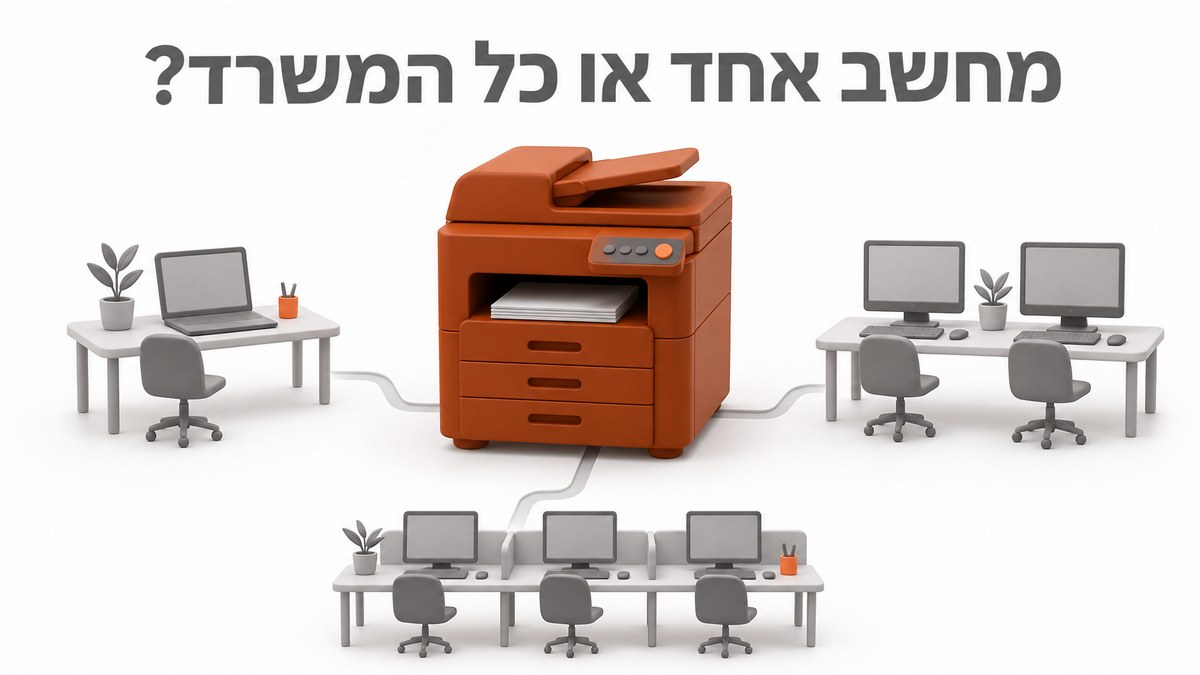
When a network printer is not printing, invoices, shipments and approvals can be delayed even while computers keep working. Start by checking that the printer is on, its display shows no error, and it has paper and toner or ink. Print a test page from the device menu using the instructions for your model: if it fails, address the local error first; if it prints, continue checking the printing path.
Before removing an installation, establish whether the problem affects one computer, several employees or the whole office. This guide covers Windows 11 and printing directly or through a shared computer or server; a print queue is the list of documents waiting to print. Keep the original files saved, stop sending additional copies and record what worked before the failure; last updated: 3 November 2026.
Network printer not printing: start with the scope of the problem
The scope of the failure determines whether to start at an employee's workstation or a shared component. The operations lead should record who is affected, which printer and application they use, and request a test document containing no personal information from another workstation. Successful printing to the same destination from another computer narrows the investigation toward the original workstation. If a department is affected, look for a shared network or queue; if everyone is affected, check the device, its connection and the server. Also record when the failure began and any recent change, including a workstation move or power outage.
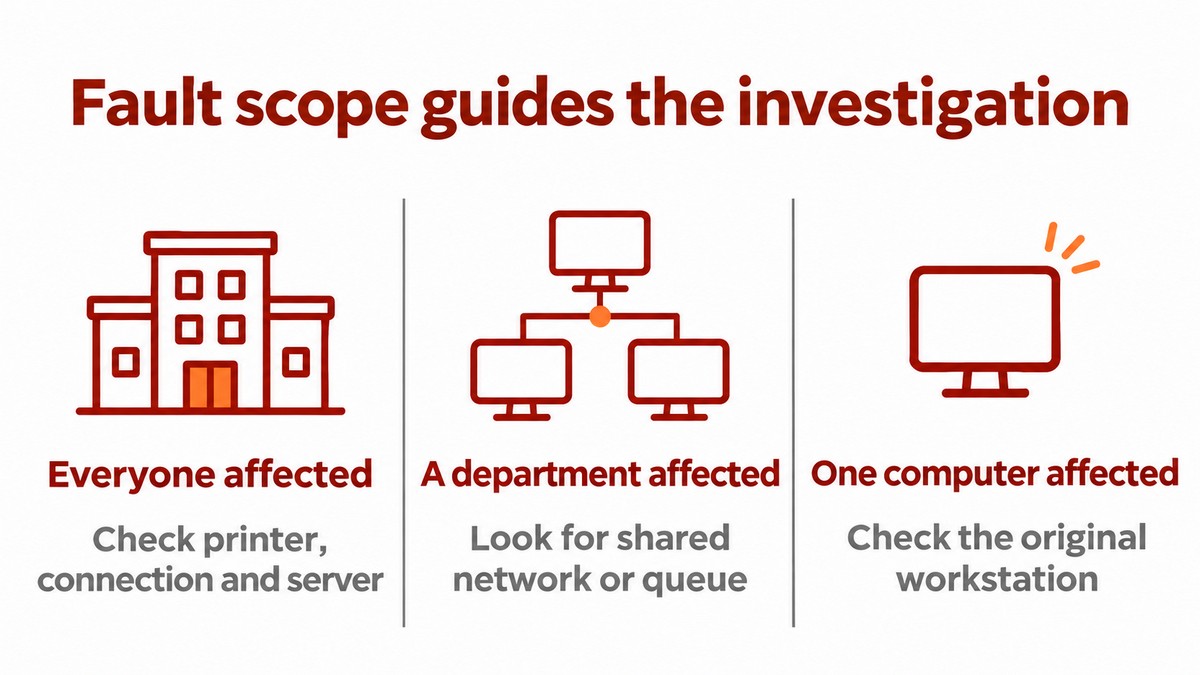
Use the table to choose the next check without treating a symptom as a diagnosis. The IT manager should record the exact queue name and the test result from each workstation, because similar names can represent different installations. A successful local test page shows that the device can produce that page, but does not confirm network connectivity. The resulting record should distinguish a device fault, an individual computer problem and a failed shared dependency. This distinction prevents unnecessary reinstallation across employees' computers.
Symptom | Check that distinguishes the causes | Action based on the result |
|---|---|---|
Printer is not detected | Can its address be reached directly? | If yes, check discovery and adding the printer; if no, check the connection and network |
Offline | Destination address, reachability and queue settings | Correct the identified cause without assuming a hardware fault |
Jobs are accumulating | Is an earlier job blocking the queue? | Cancel an identified job before clearing more broadly |
Only one document fails | Print a simple document from another application | Check the file, application and print settings |
How do you check the IP address, connection and office network?
Network troubleshooting starts with the printer's current address and a comparison with the destination configured on the computer. An IP address identifies a device on a network. The office lead should check the Ethernet cable and link indicator, or an active Wi-Fi connection, and print a network configuration report following the manufacturer's instructions. The IT manager should compare that address with the Windows configuration and save a record before making changes. Ricoh's documentation covers checking the address and correcting the appropriate port; do not automatically replace addresses for every connection type, particularly a server-managed queue or a name-based connection.
An identical Wi-Fi name does not guarantee connectivity, and different wireless bands alone do not prove a fault. The network administrator should check whether the workstation uses a guest network, whether networks are segmented, and whether a VPN changes the traffic path. If direct access works but automatic discovery fails, investigate printer discovery; if direct access also fails, check routing and filtering. Record the source, destination and result before changing rules, and consider Firewall management and network security support where needed. Coordinate the impact on operations before changing business network segmentation or restarting a router.
- Find and compare the address — IT manager. Open Settings > Bluetooth & devices > Printers & scanners, select the printer, then Printer properties > Ports. For a Standard TCP/IP Port connection, check Configure Port and compare it with the report. Save a screenshot of the selected port and address; the expected result is a match with the approved destination.
- Check reachability — network administrator. Open the printer's address in a browser if its management interface is enabled. In PowerShell, you can use `Test-NetConnection -ComputerName <printer-IP> -Port <configured-port>`, replacing the brackets and enclosed text with the actual values. According to Microsoft Learn, TcpTestSucceeded indicates whether a TCP connection succeeded. Save the output; success does not prove printing works, and failure does not prove the device is off.
- Correct the configuration and reduce recurrence — network administrator. After a router replacement or power outage, check whether the address changed. Depending on the network design, document a DHCP reservation, a consistent device address assigned by the address allocation server, and update the print destination. Complete the check by printing from the affected workstations.
How do you clear a stuck queue without disrupting other employees?
Clearing a queue starts by selecting the correct destination and canceling only the problematic job. Employees should confirm that the print dialog targets the intended device rather than Microsoft Print to PDF or an old installation. In Windows, open the printer settings and Open print queue; check whether the queue is paused or set to work offline, and clear Pause Printing or Use Printer Offline if those options appear and were selected unintentionally. The interface varies between versions. Microsoft's offline printer guide details these checks. Record the selection and queue status before and after.
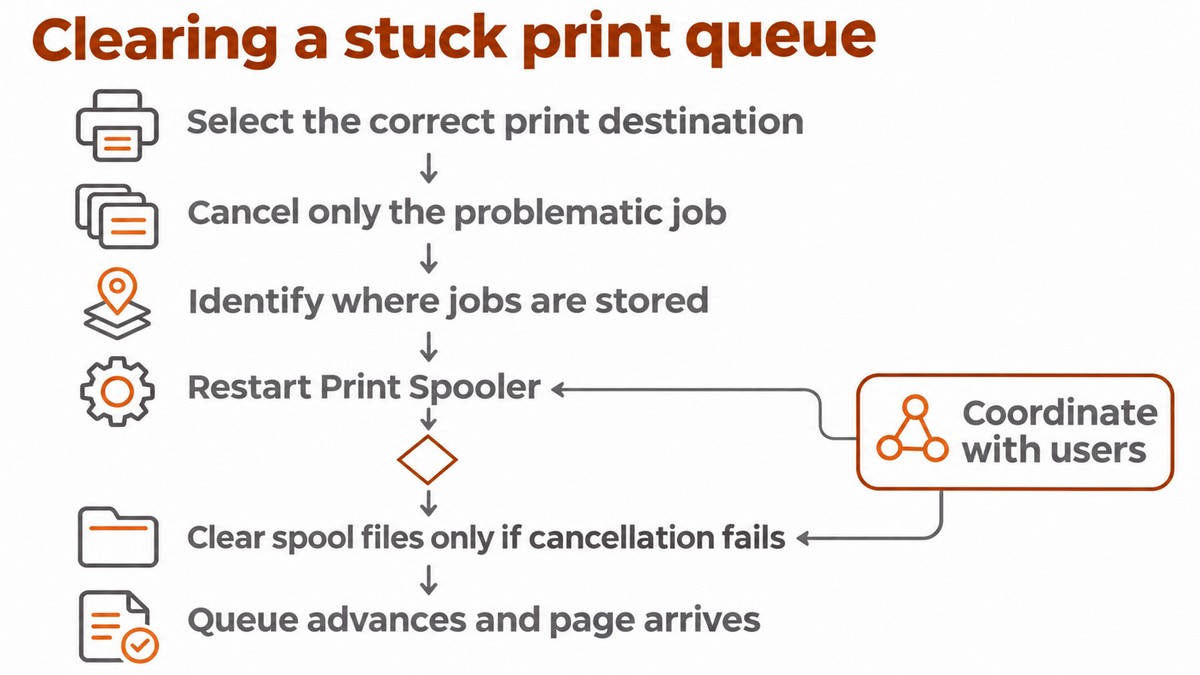
Print Spooler is the Windows service that manages print jobs. Restarting it affects printing on the computer where the action is performed, including other printers. Clearing spool files may cancel jobs belonging to other users and queues on that computer or server. The IT manager should first identify where jobs are stored, coordinate with users and keep a record of documents that need resubmission. Restarting alone is not a substitute for canceling a job: check whether a business document has already printed before resending it, to avoid duplicate copies.
- Cancel an identified job — job owner or support team. Select Cancel on the stuck job and verify that it disappears. Coordinate before canceling other people's jobs in a shared queue.
- Restart the service — IT manager. Open `services.msc`, find Print Spooler and select Restart on the relevant computer. Record that the service is running again and send a test page.
- Clear spool files only if cancellation fails — IT manager. Following Microsoft's queue-clearing instructions, stop the service, delete the files in the spool folder, then start it again. The default folder is `C:\Windows\System32\spool\PRINTERS`; verify the actual path and do not delete other folders. Completion evidence: the queue advances and the page is received.
Why does direct printing work while printing through the server fails?
Successful direct printing alongside failed server printing focuses the investigation on the shared path. A print server is a computer that centralizes queues for employees. The IT manager should verify that the server, or sharing computer, is running and reachable, and that the share name is correct. Follow a test document: does it appear in the local queue, reach the server queue and leave it? Microsoft Learn recommends isolating the transfer stages. Record where the job stops and check connectivity from the server to the printer; a working connection from an employee's workstation does not prove server connectivity.
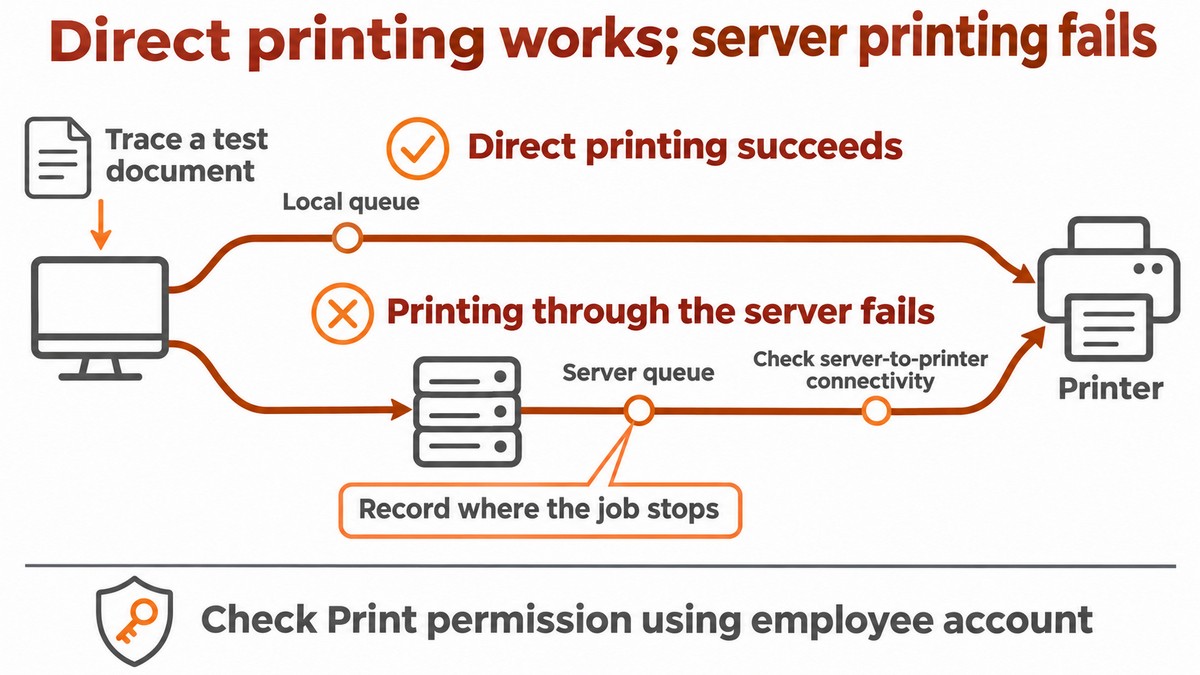
The system administrator should verify Print permission for the appropriate employee group and test access using the affected employee's account. Update groups after role changes or departures, and confirm that replacement staff receive access according to business needs. Review controls and permissions before bypassing shared management with a permanent direct installation. Before restarting Print Spooler on the server, document the affected queues and users and coordinate a maintenance window. Acceptance requires a document printed through the shared queue using an authorized account, confirmation that subsequent jobs progress, and verification that permissions were not broadened during the repair.
When should you check drivers and hand the issue to support?
Check drivers after verifying the printer connection and queue, particularly when the failure is limited to a workstation or application. A driver translates a print request for the device. Support should try a simple document from Notepad and another application, then compare the results with a working workstation. Obtain the driver for the model, Windows version and system type through Windows Update or the manufacturer's official website, following Microsoft's guidance. Before removal, save tray settings, secure printing settings and department codes, where configured. Finish with a test print and an appropriate business document without exposing sensitive information.
If the failure stops work, returns after a repair or requires server and permission changes, send support the model, IP address, error message, queue names, scope of affected users, start time, preceding change and test results. Attach focused screenshots of Ports and the queue after hiding document names and personal information. An illustrative scenario, not a customer case: if the report shows an address different from the port configuration after a router replacement, correcting the destination may resolve the failure; documenting address allocation and checking all relevant queues helps prevent recurrence. Compare the actual settings before concluding that this is the cause.
When printing includes information from a database subject to Israel's Privacy Protection Regulations (Data Security), 5777–2017 — תקנות הגנת הפרטיות (אבטחת מידע), התשע״ז–2017 — review access permissions according to roles and the access required, as explained in the Privacy Protection Authority's guide. Operationally, use a test document containing no personal information and collect printouts left in the tray. Do not open internet access to the printer to fix a local failure: Israel National Cyber Directorate guidance recommends against exposing printers directly to the internet. That guidance addresses previously disclosed vulnerabilities; it does not establish that the current printing failure is a cyber incident.