
Google Workspace Audit Logs: Who Downloaded, Shared, or Deleted a File
Choose the right Google Workspace log, investigate file downloads and sharing, check sign-ins and email, and preserve evidence.
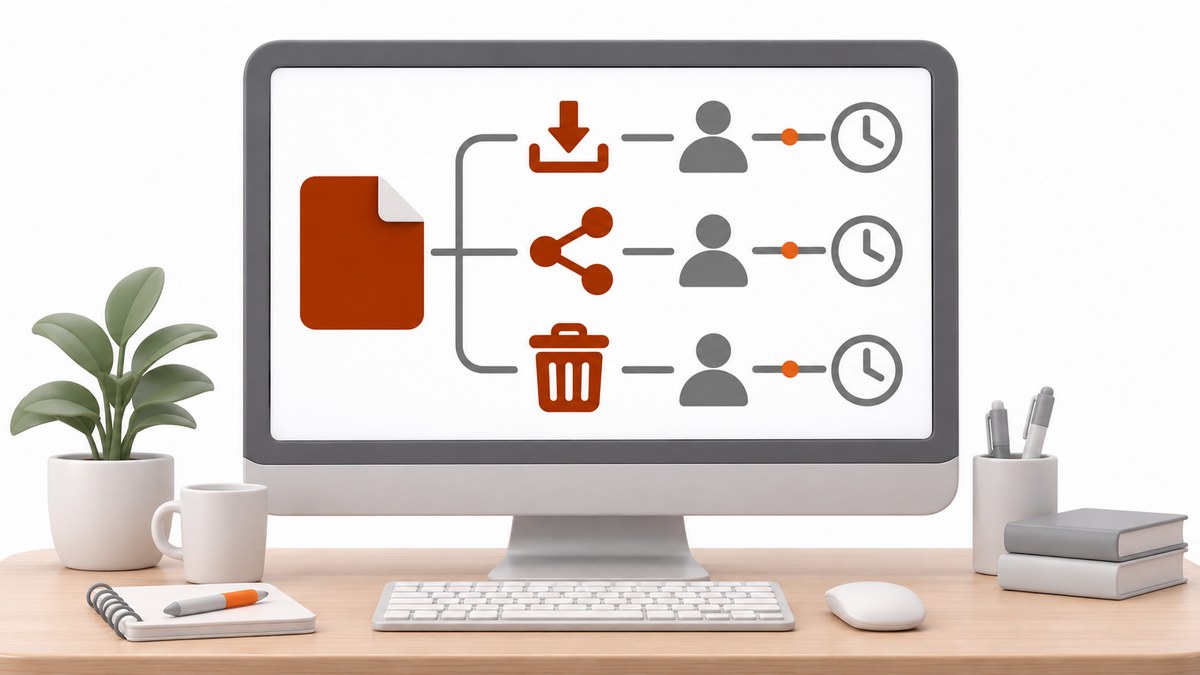
When a business file disappears or is exposed outside the organization, you need to establish which action was recorded and under which account. Start with Drive log events for files and sharing, then expand the investigation as needed to sign-ins, administrative changes, or email delivery. Collect the original link and approximate time window and pass them to IT to begin a focused search.
A log records an action in a system; it provides evidence to investigate, but does not always identify the person at the computer. The examples in this guide are illustrative scenarios, not customer incidents or actual log output. No screenshots from an organization's console are included here; for internal documentation, keep a protected original and prepare a redacted copy for sharing.
Updated and checked: November 23, 2026. By: 1iT Editorial Team.
Contents: Sources and permissions; searching; interpretation; sign-in and email; preservation and response.
Checking Google Workspace audit logs: which source and permissions do you need?
Choose the source according to the action you are investigating; general administrator access does not guarantee access to every capability. According to Google's Business edition comparison, the Audit and investigation tool is included in Business Starter, Standard, and Plus, subject to account requirements and the event source. The Security investigation tool is a separate advanced tool that is not included in these Business editions.
The table summarizes sources for a business with a verified domain. Reporting delays and retention periods come from Google's official table, while access privileges come from the linked source documentation. Drive coverage also depends on file ownership and the owner's supported edition. Data availability times are not a service commitment, and ELS is a different source from Gmail log events.
Source and purpose | Privileges and availability | Reporting delay and retention |
|---|---|---|
Drive log events: files and sharing | Audit & Investigation; the audit tool is available in Business editions, subject to event coverage, file ownership, and the owner's supported edition | Usually a few minutes; retained for six months |
User log events: sign-ins and account security changes | Audit & Investigation; the audit tool is available in Business editions, subject to the source and account conditions | Sign-ins: usually a few minutes; account events may take longer; retained for six months |
Admin log events: administrative changes | Audit & Investigation; the audit tool is available in Business editions, subject to account conditions | Usually a few minutes; retained for six months |
Email Log Search: email delivery | Gmail Settings; available in Business Starter, Standard, and Plus editions | Delivery searches cover the last 30 days; beyond that, searches require a recipient and message ID and are limited to post-delivery status |
Google sources for checking privileges and availability: Drive log events, User log events, Admin log events, and Email Log Search. Retention periods and reporting delays are detailed in Google's retention and reporting delay table; reporting delays are not service commitments. Check the actual edition and administrator privileges before running the search.
Access the advanced tool through Admin console > Security > Security center > Investigation tool. You need appropriate Security center privileges and a supported edition, such as Enterprise Standard or Enterprise Plus, but sources and actions are not equally available in both. The security center privilege documentation explains additional restrictions. Ask your administrator to verify the specific data source and action before committing to an automated process.
How do you find who downloaded, shared, or deleted a file?
An effective search starts with the file and time, then narrows down to the user and action. The document ID is a more stable identifier than its name when locating the correct file. IT should obtain the original link, date, and suspected action from the data owner, then check Drive log events. Starting with an assumption that a particular employee is responsible and filtering only for that account can miss an action by another user or an application.
In an illustrative external-sharing scenario, also search by Visibility and select Shared externally, according to the interface and the Drive event documentation. Check the actor, sharing target, and permission change, then ask the document owner to confirm the business need. If a file has disappeared, distinguish moving it to the trash from deletion and assess recovery separately. A log is not a backup. When someone changes roles or leaves, update permissions and verify that replacement staff can work with the files they need.
What does a log event prove, and what still needs verification?
An event records an action involving an account or resource; it does not by itself prove intent or the identity of a person. As a conceptual example only, Actor might identify an employee account, Event might be Download, and the record might include a time and document ID. This is evidence that the system recorded that type of action for the account and file. Compare the timestamp with the employee's report and the IP address, if present, with the business's known internet egress address. An IP helps correlate records; it is not proof of identity.
Detail in the illustrative example | What to check before drawing a conclusion |
|---|---|
Actor: employee account | Was the account being used by that employee, and did an application act on their behalf? |
Event: Download | Was this a download, synchronization, or preview? |
Document ID: document identifier | Is this the original file or a different copy? |
IP: recorded address, if present | Does it relate to the office, a VPN, or an external network? |
Conclusion and business approval | Leave these open until verification is complete |
According to Google's documentation on Drive events and Download coverage, previewing a PDF may also be recorded as Download, while some downloads are not recorded in this source. Do not conclude from the event alone that information was deliberately copied to a personal computer. A shared office address or VPN requires cross-checking against the user's account of events and the device. If App ID or application details appear, also review Google Workspace application permissions.
How do you investigate a failed sign-in or missing email?
Investigate a failed sign-in in User log events and a missing message in Email Log Search. In an illustrative scenario involving an employee who cannot sign in, IT filters by User, Date, and sign-in event type, then checks the result, authentication method, and IP where available. Compare the employee's attempted sign-in time with the record and establish whether they used a browser or an email client. According to Google's documentation on User log events limitations, not every sign-in from an email client or a non-browser application is recorded, and sign-in attempts within the same session may be combined into one record.
ELS does not display message content; delivery to an external server does not confirm that the customer read the message. Source: Google's documentation on Email Log Search, the required privilege, and search limitations based on message age.
If there are no results, IT should remove filters gradually and check the date range, user address, privileges, reporting delay, and source coverage. Verify the time zone before converting: Israel uses UTC+2 in winter and UTC+3 in summer. For a widespread issue, check the Status Dashboard. For a local synchronization issue, Log Analyzer analyzes diagnostic files from supported tools; it does not replace an investigation of activity in your organization.
How do you preserve evidence and move from investigation to action?
Google's documentation on the audit and investigation tool details the export options. Check the export limits and the number of records returned; exporting results creates a snapshot and does not configure ongoing collection or extend data retention in the console.
In Israel, the Privacy Protection Authority's guidance on Regulation 10 of the Privacy Protection Regulations (Data Security) addresses retaining the audit data required by the regulation for at least 24 months for databases subject to medium or high security requirements. The classification depends, among other factors, on the database's purpose, the types and sensitivity of the information, the number of authorized users, and the number of data subjects, according to the definitions and exceptions in the regulations. The requirement concerns records of access to database systems and the data required by the regulation, including user identity, access time, system component, access type, scope, and result; it does not in itself require retaining every Workspace activity log. Identify which records are required for the specific database and verify that collection covers them. The console's retention window alone is not an adequate preservation plan.
If account takeover is suspected, initiate a cyber incident response process and immediately give the security lead and IT provider the affected users and resources, event times, file or message IDs, exports, and a description of business impact. Based on findings and authority, restrict sharing or account access and review passwords, sessions, and applications; document containment actions and verification that employees can resume work. Send information through your established support channel, excluding passwords, verification codes, and sign-in QR codes. For configuration review and documentation, consider 1iT's Google Workspace management.
Google states that reporting rules have become activity rules. Advanced automated actions depend on licensing and permissions.
Frequently asked questions
Where are the logs, and which permissions are required?
Can you establish with certainty who downloaded a file?
Why is an event missing, and how long are logs retained?
When should you involve your IT provider?
1iT's Google Workspace management includes environment management, permission reviews, and support for implementing the required changes. Before the investigation, prepare a task list covering the users and resources to examine, time ranges, existing findings, and unanswered questions to coordinate responsibilities and next steps.
Related posts
Google Workspace vs Microsoft 365: Choosing the Right Platform for Israeli Businesses
Compare Google Workspace and Microsoft 365 pricing, security, AI capabilities, and migration costs to make the right choice for your business.
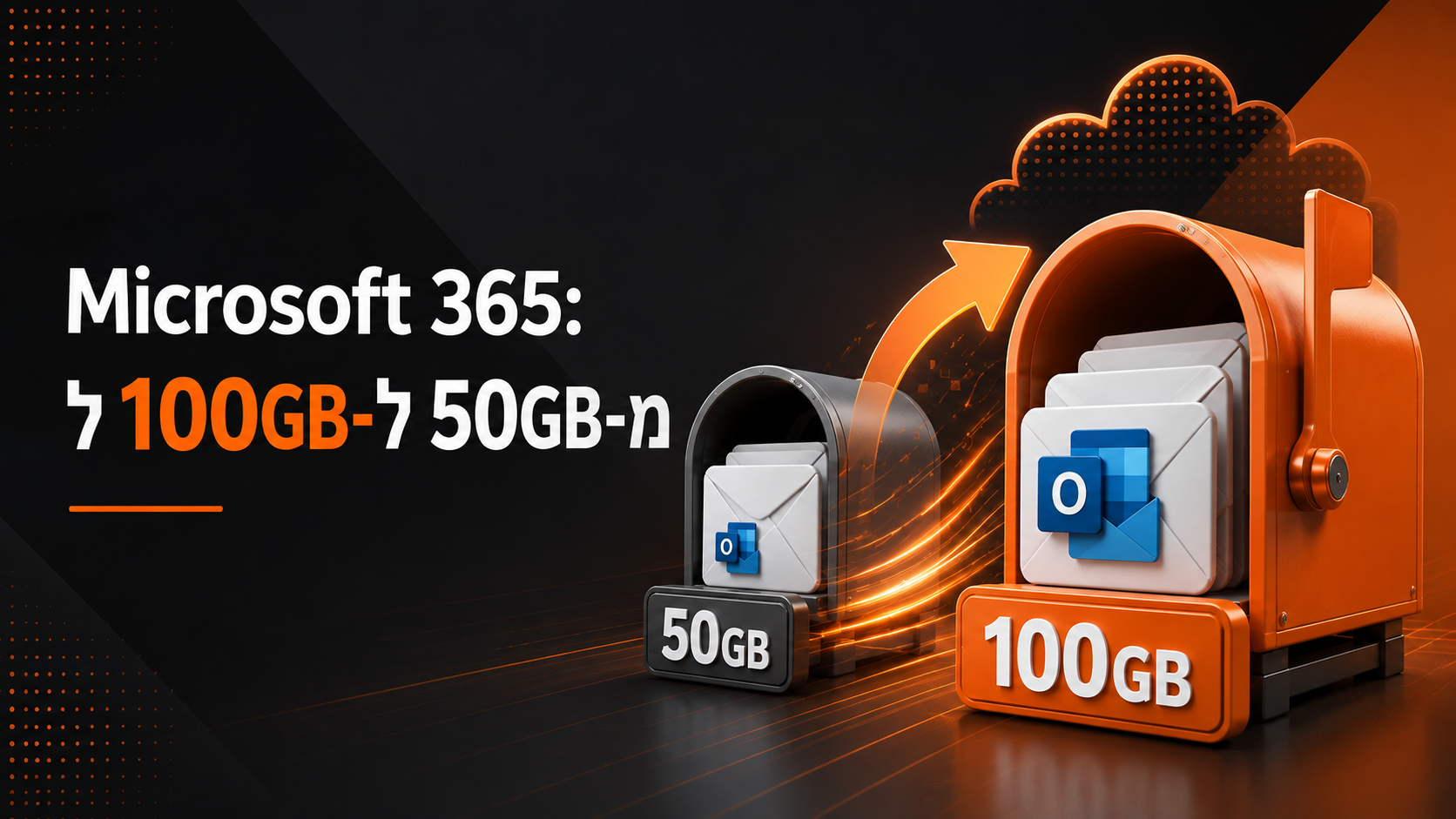
Microsoft 365 Expands Mailboxes to 100GB: What You Need to Know
Microsoft doubles Exchange Online primary mailbox storage from 50GB to 100GB for Microsoft 365 Business plans. Learn who is eligible and key checks.