
Microsoft Authenticator Approval Request You Didn't Initiate — What to Do Now
Unexpected Authenticator request? Learn how to deny it, check sign-ins, report to IT and respond if you approved by mistake.
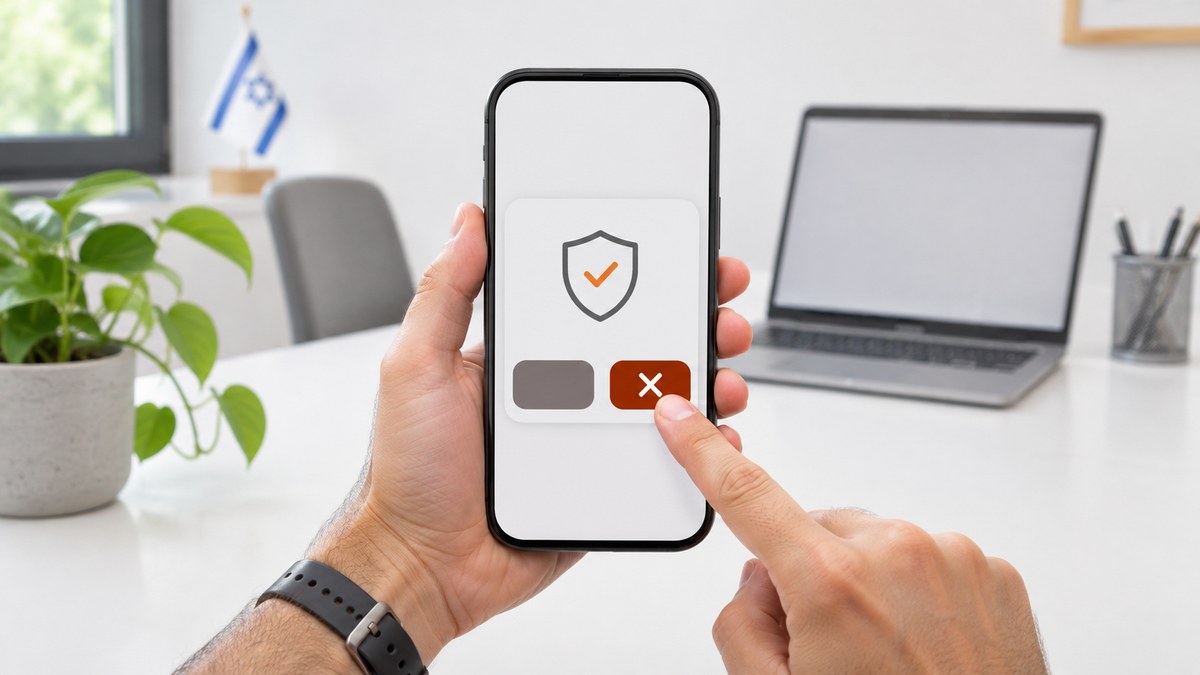
If you received a Microsoft Authenticator approval request you didn't initiate, deny it and do not share a code. If you approved by mistake or shared a code, report it urgently to support through your established support channel.
This guide is for employees and managers at businesses using Microsoft 365. It distinguishes between personal and organizational accounts and details the actions employees should take and the response from the business's IT support team.
By 1iT. Last updated and sources checked: November 19, 2026. Screen names may vary by language, operating system and organizational settings.
Microsoft Authenticator approval request you didn't initiate: choose an action path
Multifactor authentication, or MFA, checks identity using more than one type of evidence. Approval in the app allows the sign-in to proceed; even if you just opened Outlook, verify that the request belongs to a sign-in you initiated for the correct account. Use the table to choose the appropriate response based on what actually happened.
An MFA fatigue attack attempts to wear you down with repeated prompts until you approve. Microsoft describes number matching as a way to strengthen approval requests: in the applicable process, you enter the number displayed on the sign-in screen into the app. A number supplied over the phone does not verify the identity of someone claiming to be support; even a matching number, an Israeli location or a familiar device is no reason to approve a sign-in you did not start.
What happened | Required action | Who is responsible | Details to record for follow-up |
|---|---|---|---|
You denied a single request | Check activity and notify IT for an organizational account | Account holder | Account address, request time and denial result |
Requests continue | Keep denying them and contact support through a known channel without removing the protection | Account holder | When the requests started and whether there is a flood |
You approved or shared a code | Call support immediately and state this at the start of the call | Account holder | What was approved or shared, when, and who received the report |
You lost access | Contact IT for an organizational account or use the official recovery process for a personal account | Account holder | Error message and an alternative contact channel |
Which account does the request belong to, and what did you receive?
Identify the account by the full address and organization shown in the request, where available. Open Microsoft Authenticator yourself and check the relevant account card without approving. The app may contain a personal Microsoft account, a work or school account, and accounts for other services. The same display name does not guarantee the same account. If you are unsure of its type, give support the address and organization details shown; do not try an approval to resolve the confusion.
According to Microsoft's FAQs, the rotating code is generated periodically, so its appearance alone does not mean someone requested a sign-in. Passwordless sign-in with Authenticator can generate an approval request without a password being entered: an unexpected request does not prove that someone knows the password, and changing it will not necessarily stop requests through that route. Sign-in logs help establish what happened.
What appears | What it means | What to do |
|---|---|---|
Approval request in the app | An authentication action is pending | Deny it if you did not initiate the sign-in |
SMS or email code | A code was sent for an authentication process | Do not share it or enter it in a process you did not start |
Rotating code on the account card | The app displays a periodically generated code | Use it only on the official website for a sign-in you initiated |
How do you check whether a sign-in succeeded?
Check the activity result and details on the official website, beyond the phone notification. For a work account, navigate independently to mysignins.microsoft.com; for a personal account, open account.microsoft.com and go to the security area. Do not use a link in a suspicious message or a sponsored search result to reach the check. If authentication is required, approve only the request belonging to the sign-in you are performing now. If overlapping notifications make them difficult to distinguish, stop and contact support.
For instructions on navigating the screens, see Microsoft's guidance on reviewing work account sign-ins and personal account activity. One failed authentication attempt does not rule out another successful sign-in, and geographic location is a clue for investigation rather than proof of identity.
Who should you report to, and what if you approved by mistake?
For an organizational account, report immediately to IT or your support provider through an established channel; if you approved by mistake, call and say so first. Do not rely solely on a message from a potentially exposed mailbox. Send sanitized evidence if available, but do not delay reporting to obtain a screenshot. A useful report template is: “I received an Authenticator request I did not initiate for account __, on date and time __, in time zone __. I denied/approved/shared a code. Requests are continuing/have stopped. The application and location shown were __. You can reach me through __.”
If you approved or entered a code on a suspicious website, stop the process and let IT secure the account and review sessions and permissions. For a personal account, navigate independently to the security area, review activity and recovery details, and take steps to secure the account; if you cannot access it, use Microsoft's official recovery process. Do not stop at changing the password when access may already have been granted. At work, record who owns the ticket and who authorizes employees to resume using email and files.
The obligation to report to the Privacy Protection Authority depends on the database's security level and the circumstances of the incident under Israel's Privacy Protection Regulations (Data Security), 5777–2017, which govern database security. For a database subject to a high security level, a serious security incident includes unauthorized use of information, use beyond the scope of authorization, or a breach of information integrity. For a database subject to a medium security level, the definition applies to unauthorized use or use beyond the scope of authorization involving a substantial part of the database, or a breach of information integrity affecting a substantial part of it. See the official conditions and guidance in the Privacy Protection Authority's form for reporting a serious security incident, intended for an initial, immediate report of an incident that occurred or is suspected to have occurred.
The obligation to report a serious security incident immediately under Regulation 11(d) applies to databases subject to medium and high security levels; that provision does not impose this obligation on a database subject to a basic security level. A denied request alone does not establish that these conditions have been met. Organizational management and the responsible specialists should immediately assess the database classification, the circumstances of the incident and the reporting obligation.
Separately, you can voluntarily report to the Israel National Cyber Directorate's 119 center for initial professional assistance. Reporting to 119 does not replace the organizational response or mandatory reporting to the Privacy Protection Authority.
Do not send support passwords, verification codes or authentication enrollment QR codes. If a screenshot includes them, remove them before sharing through the approved channel.
What should IT investigate and change?
Responsibility for investigating the incident and handling the account can be assigned through managed Microsoft 365 services. Microsoft Entra ID is Microsoft's identity management service, where authorized administrators review sign-in logs. According to the MFA logging documentation, a single status or a field mentioning MFA is insufficient to understand the sign-in sequence; the investigation should be conducted and documented using the following steps.
For prevention, review policies and authentication methods suited to employee roles, and train employees to deny and report requests. Report suspicious activity depends on organizational configuration; if offered, use it alongside reporting to IT. Automated risk-based remediation also depends on licensing, so do not assume every feature is included in every plan. Verify permissions against business needs, update them when roles change or employees leave, and ensure replacements have their own approved access. Do not share accounts to bypass a block. Planning identity and access management helps assign responsibilities and access by role.
Frequently asked questions
Does the notification mean someone knows the password?
Why do requests continue after a password change?
Should you delete the app or turn off notifications?
What if you approved by mistake and can no longer access the account?
Managed Microsoft 365 services — support for managing accounts and permissions, implementing authentication methods and establishing a process for handling access incidents.
To establish responsibility for handling business accounts, contact 1iT to coordinate IT systems management and support and assess your business cybersecurity needs.