
Outlook Not Sending Emails? Troubleshooting by Symptom
Troubleshoot sending and receiving in new and classic Outlook: stuck messages, sync, attachments, shared mailboxes and when to contact support.

When Outlook is not sending emails, troubleshooting starts by finding where the message stopped. Quotes, invoices and customer replies can remain on an employee's computer unnoticed. Start with a quick check: confirm that a website opens, send a short message without an attachment, and test whether the same mailbox sends through a browser. Record whether the recipient received the message, rather than simply whether it disappeared from the screen. The results will guide you toward the application, the account or mail delivery.
This guide covers Outlook on Windows and business accounts, with distinctions for personal accounts and other email providers. Make one change at a time and retain a result you can share with support. If incoming mail is also affected, check the same folder, junk mail and sorting rules in the browser before assuming messages have been lost. Last updated: 03.11.2026; these instructions are based on Microsoft documentation available when checked.
Outlook not sending emails: start with a test that isolates the problem
Sending through a browser helps distinguish an application issue from an account or email service issue. Employees perform the test, while the operations manager establishes whether one workstation or several employees are affected. Use the same sender address and an approved test recipient, with no sensitive content. Record which application you used, the recipient type and what arrived. Successful browser access may allow work to continue while the application is investigated.
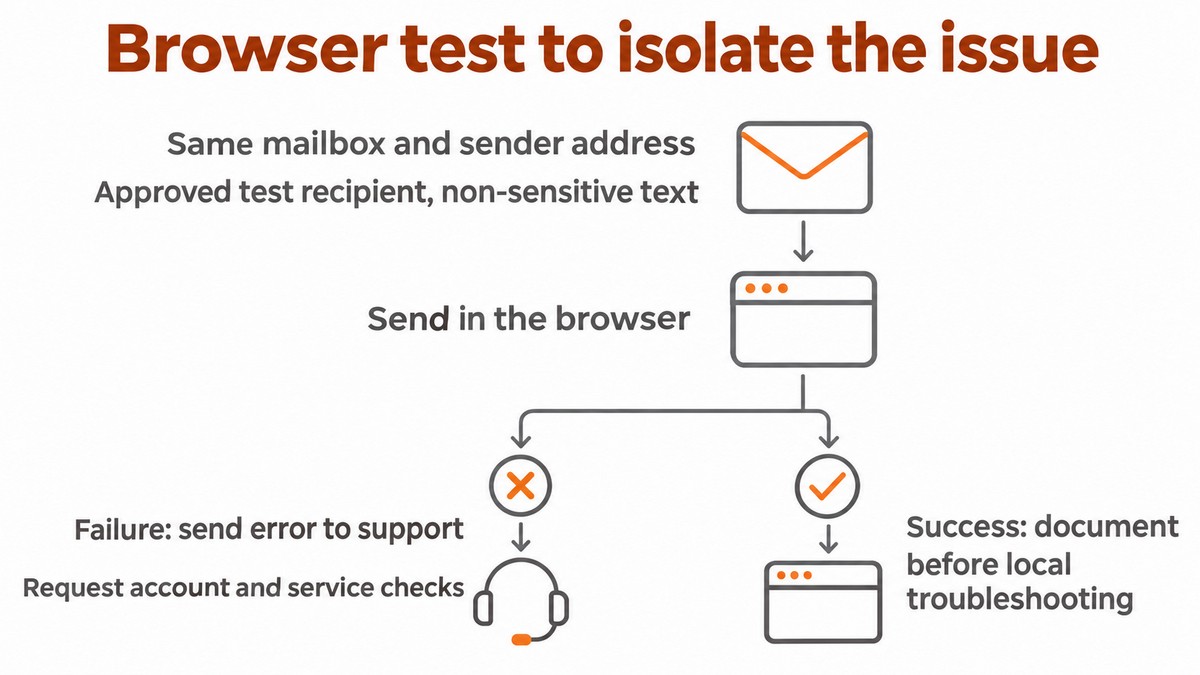
- Check connectivity and a simple message — employees are responsible. Open a website in the browser, then send a new message without a complex signature or an attachment. Try an internal recipient and an authorized external recipient, recording each result separately. If only the message with an attachment fails, retain the file and check size limits and sharing permissions; if the simple message also fails, continue to the browser test. Completion evidence is confirmation from the recipient or a documented error, rather than just clicking Send.
- Test the same mailbox in the browser — employees are responsible. For a Microsoft 365 business account, open Outlook on the web through the organization's portal; use Outlook.com for a personal account and the provider's webmail for another service. If sending fails there too, share the error with support and request an account and service check. If it succeeds, record that before making local changes. Do not test from an alternative personal account: it does not test the affected business mail route.
Symptom | Next action | What to record |
|---|---|---|
Message in Outbox | Check connectivity and the attachment | Connection status and whether a short message sends |
Message in Drafts | Check Send or scheduled sending | The selected sending time |
Error when clicking Send | Copy the full wording | Code, time and sender account |
Message in Sent Items but not received | Check the nondelivery report and server trace | Recipient, time and trace result |
How do you identify the version and restore synchronization?
Identifying new or classic Outlook determines which buttons and settings to check. New Outlook has a Settings gear; classic Outlook has a File tab. Employees should record the version number: in new Outlook, use Settings > General > About Outlook, and in classic Outlook, use File > Office Account > About Outlook. Separately, record the email provider: Microsoft 365 business, personal Outlook.com or another provider. The application's name does not establish who manages the mailbox or its quota.
- Restore connectivity in classic Outlook — employees are responsible. Check the bottom status bar for Working Offline, Disconnected or Trying to connect. When Work Offline is selected, click Send/Receive > Work Offline to turn it off, and verify that the status changes. Use Send/Receive All Folders for folders or Send All to send messages. If the button is missing, ask support to check the account configuration; if the connection remains unavailable, further clicks will not resolve a sign-in or network issue.
- Sync new Outlook and check automatic sending in classic Outlook — employees are responsible. In new Outlook, select View > Sync; offline access is under Settings > General > Offline and is separate from classic Outlook's Work Offline switch. Reconnecting should update locally saved items. If classic Outlook sends messages only after F9, check File > Options > Advanced > Send and receive > Send immediately when connected. Record the setting before changing it and test a new message; a locked setting requires an administrator.
How do you release a stuck message without losing its content?
Release a stuck message by saving its content and attachments before changing it, then test sending without the attachments. Start with the oldest message in Outbox, because a large message can delay subsequent messages too. A message in Drafts needs a different check: confirm that you clicked Send and did not select Schedule send or, in classic Outlook, Delay Delivery. Employees should record where the message is and when it is due to send before creating a copy that could result in duplicate delivery.
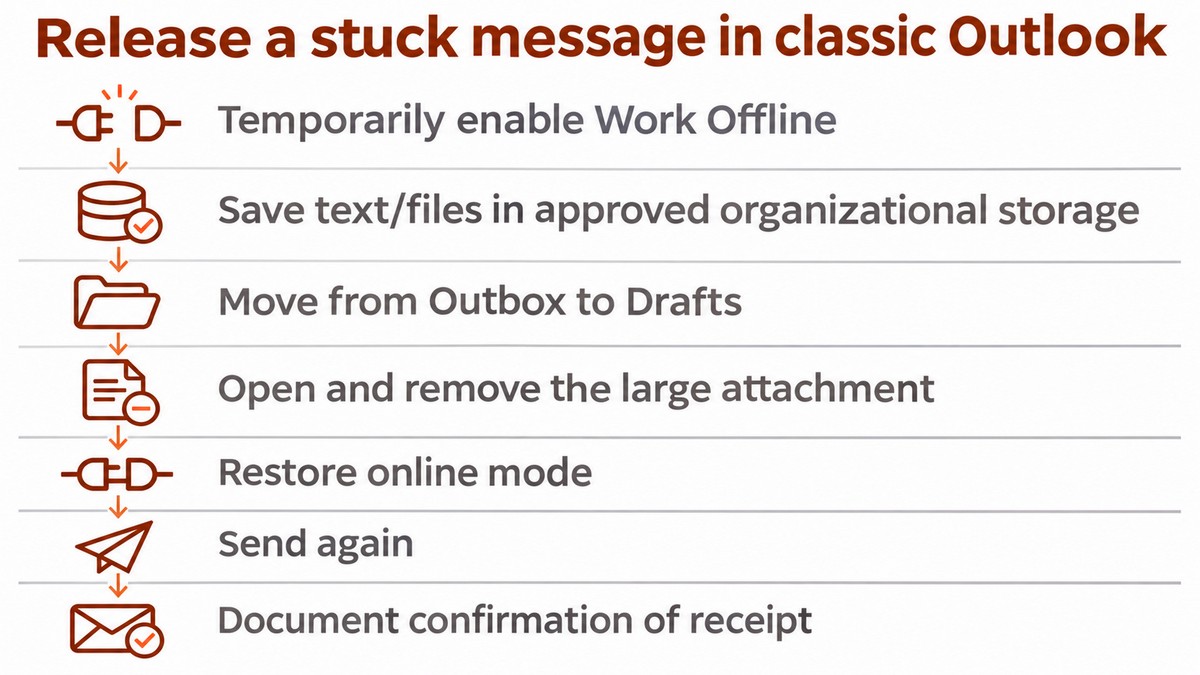
- Save the content and move the message to Drafts — employees are responsible. In classic Outlook, temporarily enable Work Offline, save a copy of the text and files in an approved organizational location, and move the message from Outbox to Drafts. Open it and remove the large attachment. If Outlook says it is transmitting the message, close and reopen Outlook and try again. Go back online and resend. In new Outlook, save a copy first, then edit or return the message to a draft if available; otherwise, contact support before deleting it. Record confirmation of receipt.
- Check the attachment, quota and sign-in — employees with support assistance. There is no single attachment or storage limit for every Outlook account: check the provider, account type and organizational settings. If text sends but an attachment does not, try an organizational sharing link with permission for the correct recipient. Check storage alerts; in Outlook.com, full Microsoft storage can also block sending and receiving. After a password change, complete sign-in and authentication through the familiar application or website. Document repeated sign-in requests and do not approve an authentication request you did not initiate.
Why does sending to colleagues work while sending to customers fails?
Successful internal delivery does not establish that external sending works, because policies and filtering can affect different routes. First check the exact recipient address and type it again rather than selecting an old suggestion. If only one recipient is affected, ask them to check junk mail or contact their email administrator. A nondelivery report, or NDR, is a returned message explaining a delivery failure; an error in the Outlook window describes a failure reported by the application and does not, by itself, prove that the server received the message.
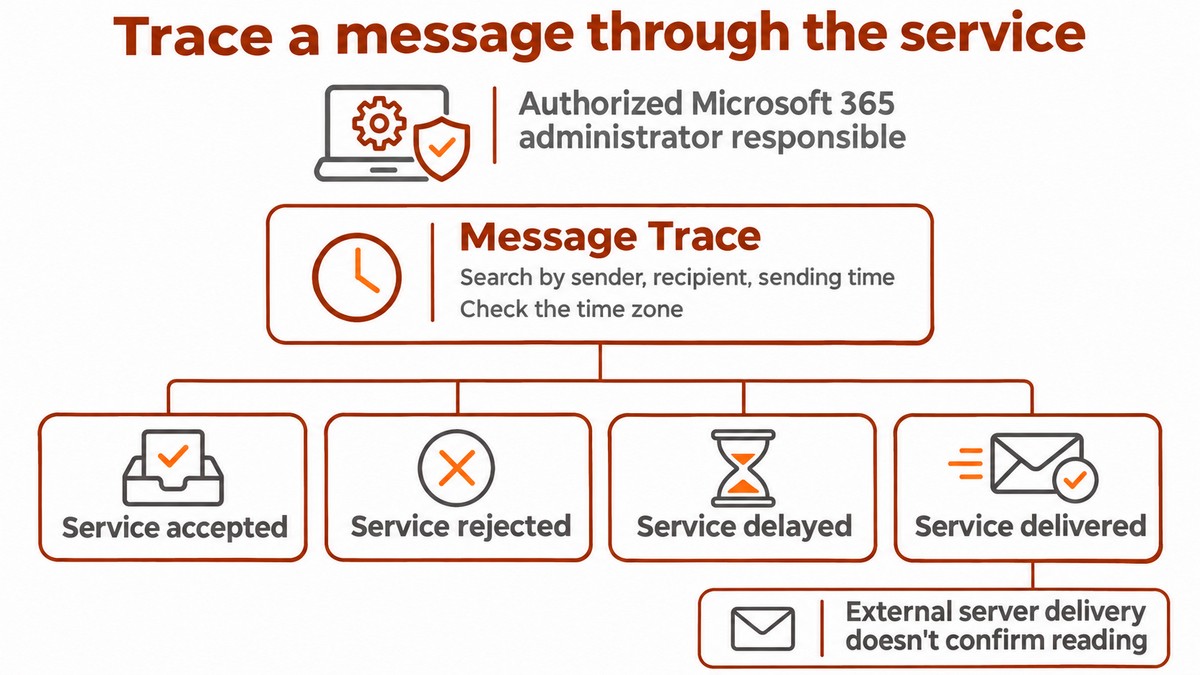
- Run a server trace — an authorized Microsoft 365 administrator is responsible. Message Trace tracks a message's passage through the email service. In the Exchange admin center, select Mail flow > Message trace and search by sender, recipient and sending time, checking the time zone. Record whether the service received, rejected, deferred or delivered the message. An empty result requires checking the search before drawing a conclusion. For external failures, review event details, sending policies and blocks; delivery to an external server does not confirm that the customer read the message.
- Check sender identity and permissions — the administrator is responsible. For a shared mailbox, compare sending from the personal address with sending from the shared address. Full Access provides access but does not, on its own, grant Send As permission to send as the mailbox. Check the From field and the employee's permissions against their role, updating permissions after a role change or departure; also test replacement staff access. Retain a test result from the shared mailbox. For details, see the shared mailbox guide.
Illustrative examples only, with details redacted:
- Application error: “Sending failed; account: [redacted]; code: [displayed code]” — retain the original wording for investigation.
- Nondelivery report: “Recipient: [redacted]; 5.7.124; Sender not in allowed-senders list” — according to Microsoft, the sender is not authorized to send to the distribution group; the group administrator checks permissions.
When should you contact support, and what should you include?
Contact support when these checks do not restore sending, several employees are affected or business service is disrupted. The operations manager should collect the version and build number, email provider, incident time and time zone, error code and wording, number of affected users and browser test result. Specify whether the failure is internal, external, limited to one recipient or associated with a shared mailbox. Include sending results with and without attachments, and retain the original nondelivery report in the approved support channel for accurate investigation.
- Perform controlled advanced troubleshooting — support is responsible. In classic Outlook, close Outlook and run outlook.exe /safe through the Run window to test safe mode. Success may point to an add-in; document add-ins before testing through File > Options > Add-ins > COM Add-ins > Go. Continue with approved updates and profile repair through File > Account Settings > Account Settings > Repair, where available. Repair Office or use an alternative profile after checking and preserving local data, then document a sending test.
Minimize personal information in support requests: redact unnecessary customer content, while retaining codes and routing details in an authorized channel. Israel's Privacy Protection Authority presents data minimization as a principle of privacy law; this is practical advice for handling incident records, rather than a statement that every fault requires reporting to the Authority. If account compromise is suspected, use a safe device for reporting and response. Through managed Microsoft 365 services, we at 1iT help manage and support business IT according to organizational needs.